For the folks who wish to apply fascinating screen savers as desktop background on Mac may follow the simple instructions written below to do that. Although this Mac tip works temporary until your system is ON and on next session you have to perform the steps again to set screensaver as background. Anyway, still its interesting.
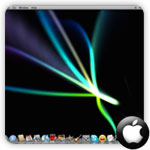 Set a Screen Saver as Desktop Background on Mac
Step 1
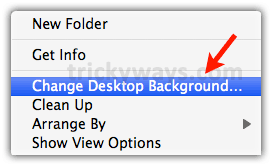
“Right click” on desktop and select “Change Desktop Background…” option
Step 2
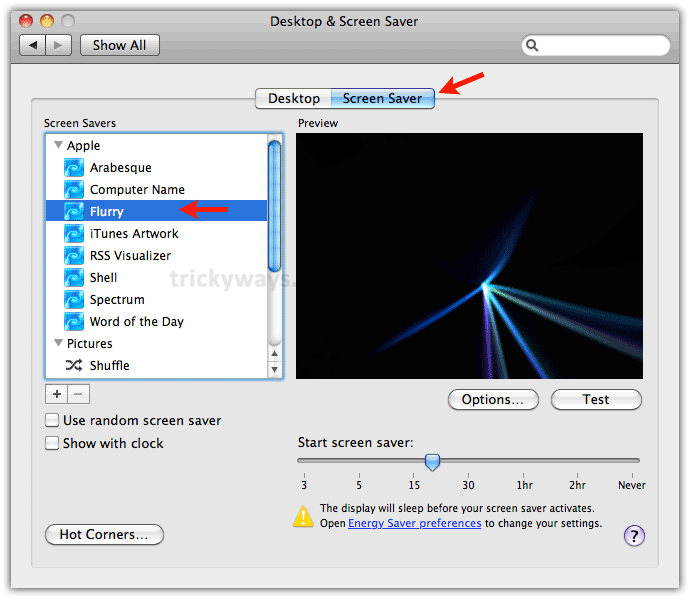
Click “Screen Saver” tab and here select any screen saver which you want to set as background and close the window
Step 3
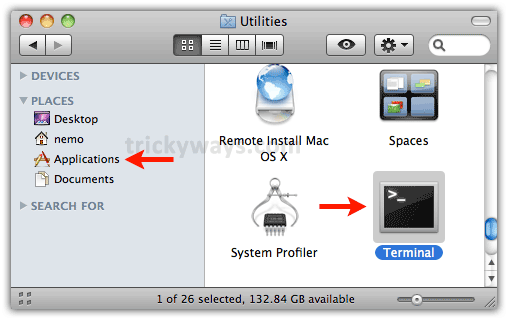
Now open “Finder”

Go to “Applications > Utilities” and launch “Terminal”
Step 4
Copy and paste following command in “Terminal” and hit “Enter”
/System/Library/Frameworks/ScreenSaver.framework/Resources/ScreenSaverEngine.app/Contents/MacOS/ScreenSaverEngine -background

Step 5
Now, minimize “Terminal” and see, the applied screen saver is appearing as desktop background

To revert the change simply close the Terminal window.
nice mac tip
How do you get it to stay like that?