If you have purchased a lot of apps through App Store and just to avoid the mess you want to hide some of those apps temporarily from the list then the following guide will help you to do that on your iPad. Through this guide, you will also learn the process to unhide apps on App Store Purchases.
Note: You must sign in to App Store on your iPad by using your Apple ID and password. For the security constraint, App Store again asks for Apple ID password, while you edit something related to your purchases, so you have to provide that during the process below, whenever that would be required to proceed further.
Hide App Store Purchases on iPad
- Launch “App Store” from Springboard on your iPad
- Tap on “Purchased” tab at the bottom of the screen.
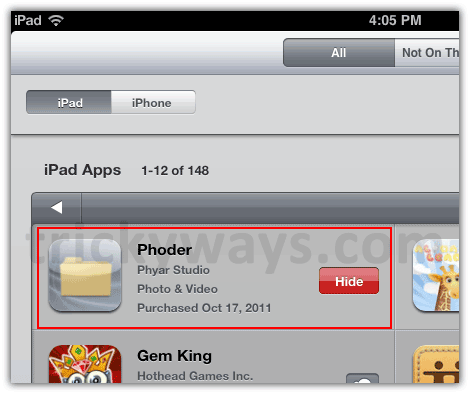
- Swipe on any of your purchased apps, and in result “Hide” button will appear, so just tap on it and your selected app will get removed from the Purchased list
Unhide App Store Purchases on iPad
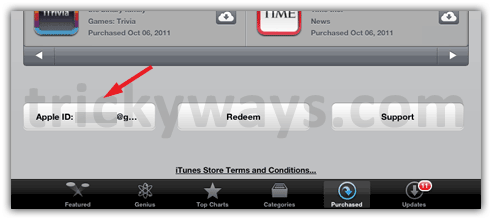
- Tap on “Purchased” tab in App Store and scroll down and tap on your “Apple ID“
- Tap on “View Apple ID” option or “View Account” whichever available according to installed iOS version.
- Enter your Apple ID Password when prompted for and hit OK
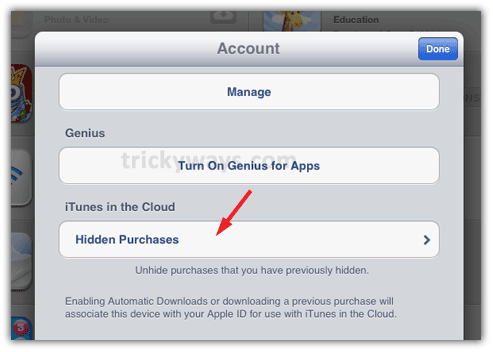
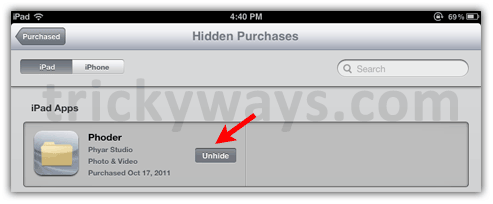
- Under “iTunes in the Cloud” section, tap on “Hidden Purchases”
- Tap “Unhide” button followed by the app to which you want to show in your Purchases list again and that’s it
View Comments (13)
Thank you for the concise and easy to follow remedy.
Took me all day to find the answer without any luck. Saw your answer took me less than 3 seconds to solve my problem.
Thanks a bunch!!
Not working in my iPad. No unhide button. It's only open button
Doesn't work on my ipad.
I have iPad2 updated to 6 and it has to hide button either.
What do I do I tried the method u told me but its not working coz there not showing the red button
I couldn't do the last step, there's no unhide button, I have an ipad3
Thank you so much for your help. I've been searching for the app for days and solved it in seconds after finding your post
Thanks works very well appreciate it
This is 2017 the iPad is not set up like this at all , can you up date the answer to this question. How do I undo the hidden.?
This is 2017 & the format has changed since then ,could you upgrade your answer .to how do you unhide apps in purchases. Thank you
Method is almost same anyhow, screenshots are updated in the guide. If you still need some help please reply, Thanks.
My mini ipad for some reason doesn't have itunes under the cloud section and I can't unhide my app. Do you know what i can do?