Got an iPhone or iPod Touch? then you must know that in order to download and install apps from App Store, as you should know, you’ll need to register an iTunes App Store account and creation of this account requires Credit Card or some other payment options.
What if you do not have a credit card or payment options offered are not available in your country? or for certain reasons, you do not want disclose your credit card information. Then the question arises;
Is there any way to register an iTunes account for free (without Credit Card or other payment options)?
Yes, there is. you can register iTunes account without credit card or other payment options. But it involves a tricky step. Follow the steps mentioned below to create a free iTunes account:
Step-1
Run iTunes
Step-2
Click on iTunes Store from left pane

Step-2
In the right pane scroll down at bottom right corner see the flag icon if its not a United States flag Click on it and change it to United States flag

Step-3
Click on App Store from top menu

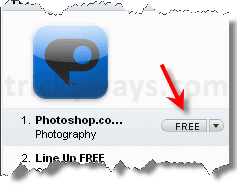
Scroll down and find Free Apps Section on right side. Rollover on a free app and click Free button
Step-4
Click on Create Apple ID

Step-5
Click Continue button on Welcome screen

Step-6
Check the terms and condition checkbox and hit Agree button
Step-7
Fill out all the required details in the form and hit Continue button
Step-8
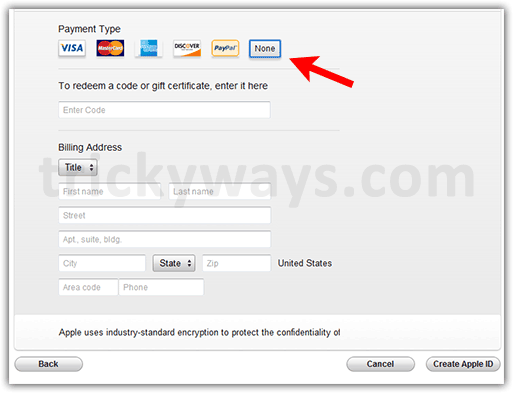
Select None from Credit Card options, leave the code field if you don’t have.
Fill out all other details like Salutation, First Name, Last Name, Address (New York), City (New York), State, Zip Code (10012), Phone (212 226-21532) and hit Create Apple ID button
Step-9
An email will be sent to you. Check you given email account, read the instructions to verify your account.
That’s all now you have Free iTunes Store account enjoy 😉
Thanks you very much. Created iTunes Store account successfully.
thanks for sharing this informative post
Thanks for suggusting free method to create iTunes account
So its possible to create iTunes Store account without credit card, thanks
I am not getting None option in credit card step, can you help me?
Follow all steps as given above, don’t use any other button or link to create account. Otherwise None option will not display.
Thanks for the help to crete free itunes account
Registering iTunes account for free thanks for instructions
thanks for sharing this useful trick to create iTunes account without any credit card
It works for me thanks a lot
Give you 1000 points for this great job
Thanks a lot dude, this method works.
woow free method to create iTunes account without any credit card
very nice post and instructions to create free itunes account
iphone ringtones by this method thanks a lot
Strange!!!! I created iTunes account without any credit card by following your instructions.
Me also, thanks
oh well ppl how did you make it? i cant see any NONE button seriously i tried 10 times its same!!!!!!!!! pls help or may i use someone’s? ijust need some free applications plsss
Follow the exact steps to create free iTunes account.
Feel free to reply.
This worked perfectly, sheer genius, thanks!
And if you do want to buy any apps etc., you can just go into the “edit payment options” and pay with an iTunes gift voucher, available from most big record stores.
My apple store account is blocked, thanks for the method to create free itunes account
my itunes doesn’t have that flag icon on the bottom right corner. it’s in like spanish or something. i need help. how do you change it to english?
Click on the flag to change it to English (USA flag) and follow the other steps as guided above to create free iTunes account
i know but for some reason it doesn’t show the flag
See this screenshot for alternate method to change country in iTunes
not work
“Your credit card was declined. please enter valid credit card information”
In step-8 select none option in front of credit card and fill the form information as mentioned in step-8. You don’t need to enter your credit card information to create iTunes Store account.
hihi I followed all the instruction and clicked none option, it still says credit card declined..please help.. thanks! 🙂
can you please tell me about URL where i can register myself with my new iphone, waiting…
Why do you want to register yourself? Do you want to download apps for your iPhone?
yeh, i really want to download useful but free apps for my iphone.
Great, just follow the given steps above in the post to create a free account on iTunes Store and start downloading free apps.
Superb….Thank’s lot
There’s no none option in creating a iTunes account,it’s says that I need a credit card to register in iTunes..what can I do to have a free account??
if i have already an an iTunes account. now when i want to downland (even a free apps) they ask me a credit card. no “no payments” option available. any trick to pass it?
thanks
I would say thanks but it doesn’t work for me.
Don’t know why.But it says address doesn’t match, things like that. So do i have to use the address on the tuto?
i really put in the same number in their web but say “the phone must be a 7 digit number ” so what can i do ? thank for reply soon!!
In step 8 when i choose none and complete the page, and choose continue, it says ((contact itunes support to complete this transaction))
Please help me
I’m trying same trick but isn’t work in last step its showing red line to fill billing address, anyone help me how to I pass this error…
and in last step its doesn’t show continue its show create Apple ID… so kindly please help me and guide me to how can I fix this error
How to create apple id without credit card or PayPal guide updated with the new screenshots, Read the step8 carefully to create Apple ID. Choose “None” option as Payment Type and use give information in step8 as “Billing Address”.
Why does it say Phone number must be 7-digits?