Transferring documents in PDF file format is very common, Converting Excel document to PDF file and sharing with your customers in protected mode, your customer can’t change it and its is in the same layout that you have created in Excel.
Microsoft Excel also gives an option to save Excel .xslx files as PDF. follow the given steps below to convert Excel file to PDF file.
How to save Excel .xslx file as PDF
Step-1
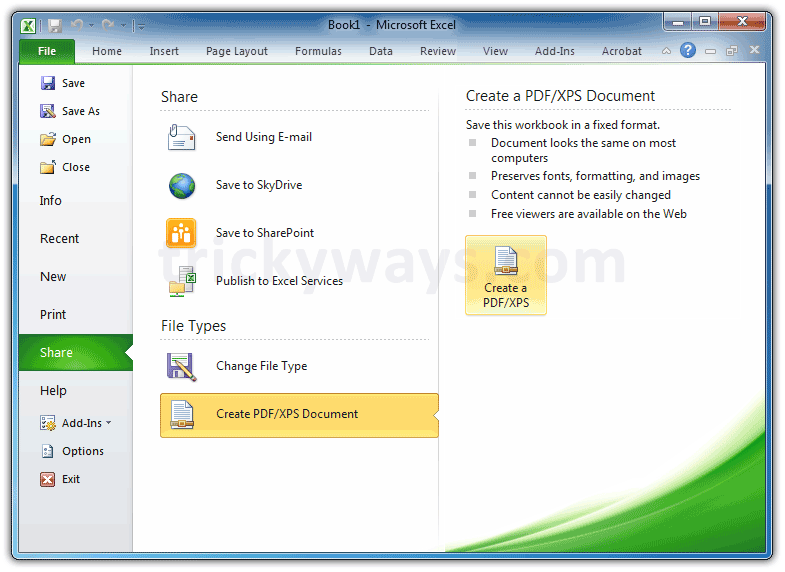
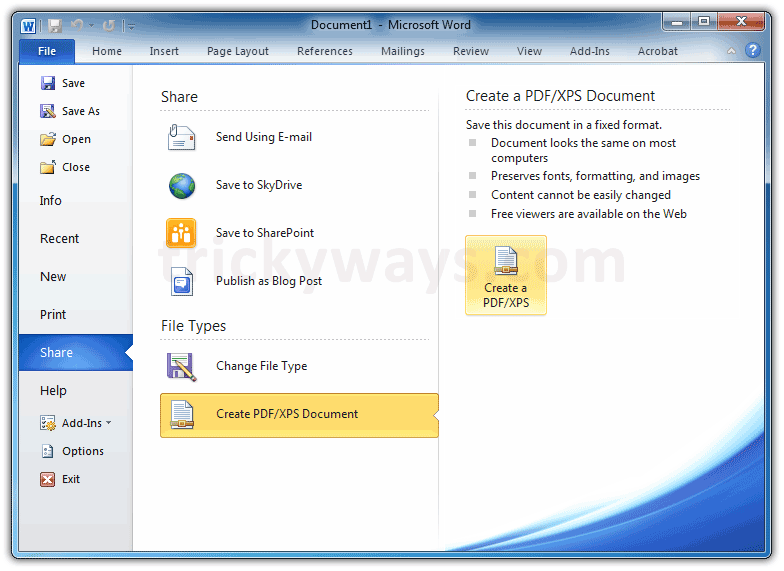
Click on File tab > Share > Create PDF / XPS Document > Create a PDF / XPS
Step-2
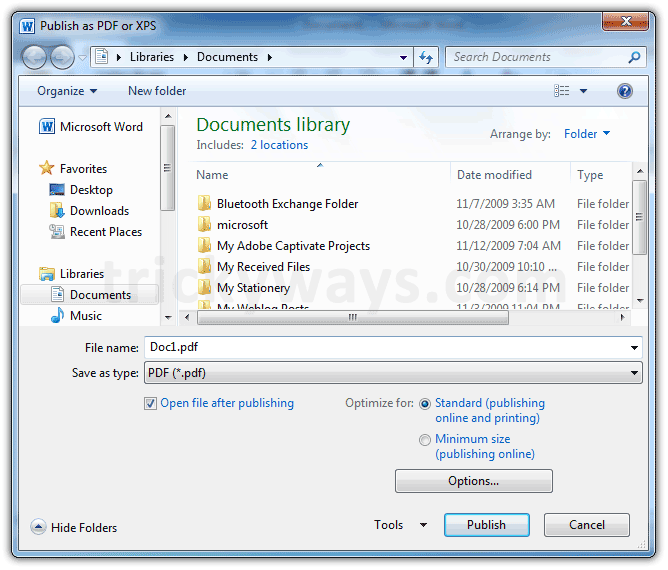
Type a PDF file name, You can optimize PDF file for the Printing or publishing online use Optimize for options.
Tip: you can also save XPS file here by selecting XPS (*.xps) from Save as type dropdown menu.
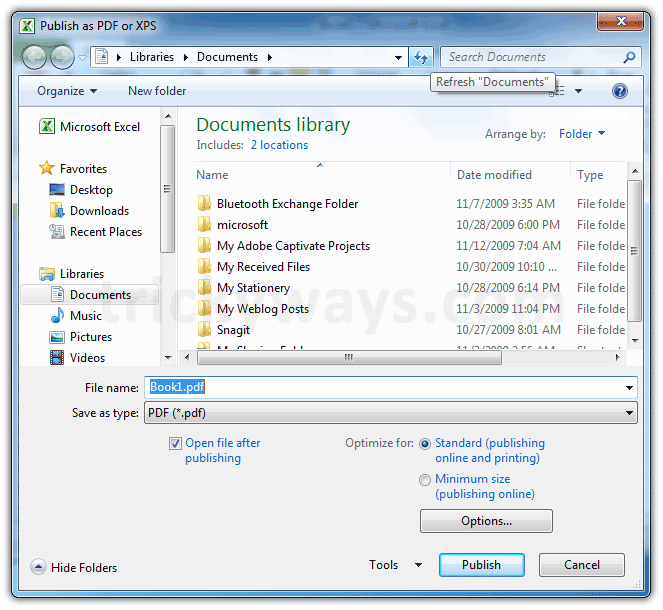
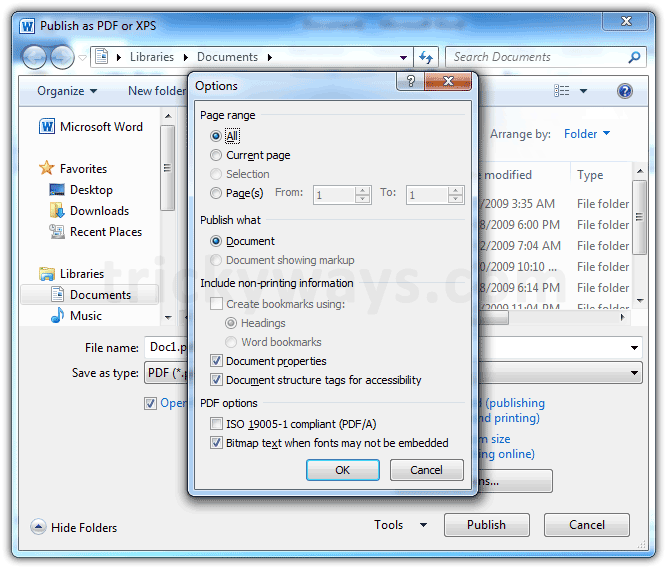
for more options click on Options button, you can give Page range to publish, Entire workbook, Active Sheet(s) and more… see below in the screenshot.
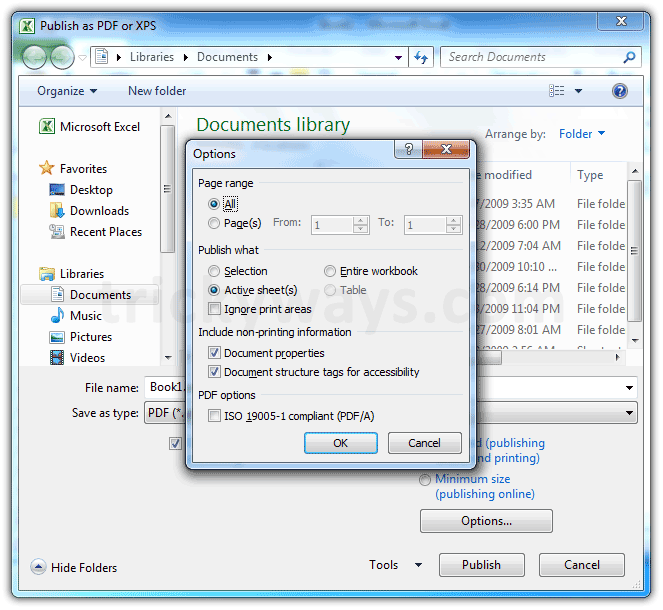
When you finished with options then click on Publish button to create PDF from Excel.
Thanx but how to convert PDF to excel
Can anyone help me? I have a problem with Excel spread sheet as I can’t save under PDF file. When I click to save under PDF file, a read shows “No Printers are installed. To install a printer, click the file tap and then click print and so on…….”
Just for info, no printer link is attached to my notebook.