If you are the only one who uses your computer or you just use it for gaming or something not that important, so you might not want to have to log in every time you boot your computer.
By default Windows 7 needs a password to log in to protect your PC from unauthorized access. But you can turn off Windows Native Password Protection log in to Windows 7 automatically each time you boot Windows.
Follow the instructions below to enable automatic login to Windows 7. (these steps also works on Windows Vista & XP)
Step-1
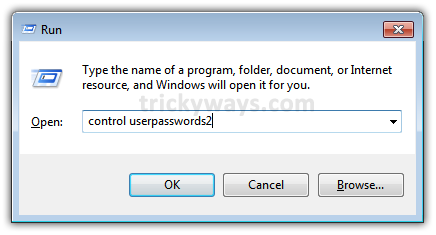
Press “Windows Key + R” buttons from your keyboard to launch the Run dialogue box and type
control userpasswords2
press Enter and it will bring up User Accounts screen.
Step-2
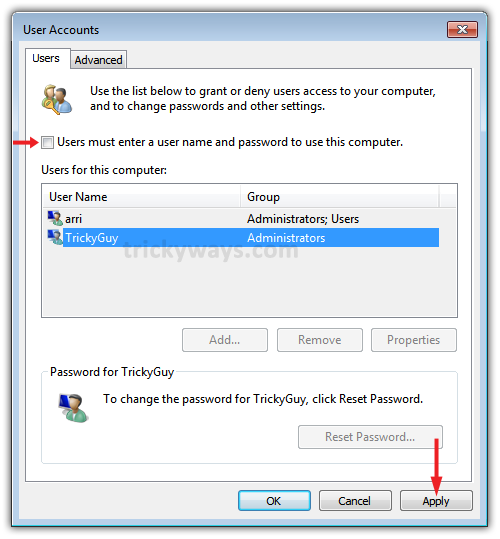
Now you have to uncheck the box labeled as
Users must enter a user name and password to use this computer.
After unchecking, hit Apply button.
Step-3
Automatically Log On screen will popup. Enter the required information and click OK.
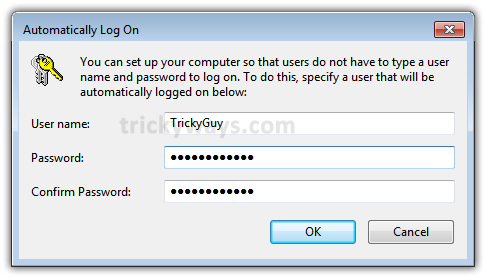
That’s it. Now on, whenever you’ll boot up your Windows , it will automatically login to your account without asking for the credentials.
Thanks for the tip to enable automatic login
thanks for this tip to enable automatic logon on Windows Vista
I really appreciate your work, keep it up