Microsoft gives option to download Windows 7 ISO file when you purchase Windows 7 from Microsoft Store. You need to create a Windows 7 bootable USB or DVD from this ISO file. Windows 7 USB/DVD tool is used to create that bootable USB or DVD.
Bootable media allows you to install Windows 7 without having an existing operating system on you computer, you can change the boot sequence to USB or DVD from BIOS setup of your computer.
Installing Windows 7 USB/DVD tool
Step-1
Download Windows 7 USB/DVD Tool and save file on your desktop
Step-2
Run the saved setup file to install it.
NOTE: You must have Administrator rights on your computer to install it. Tool also requires Microsoft .NET Framework version 2.0 or higher, If you don’t have on your system this setup will download and install for you.
Step-3
Follow the easy installation steps to complete the installation process.
Creating Windows 7 Bootable USB or DVD
Step-4
After completing the installation, Download Widnows 7 ISO file from Microsoft store, if you already have skip this step
Step-5
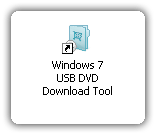
Run the Windwos 7 USB/DVD tools from shortcut on your desktop – OR – click on Stat Menu > Windows 7 USB/DVD Download tool
Step-6
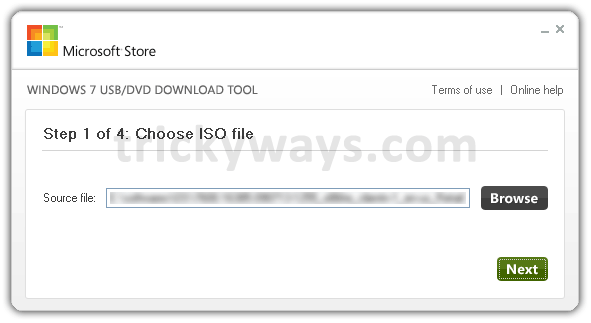
Click Browse button and choose Windows 7 ISO file that you have downloaded from Microsoft Store.
Step-7
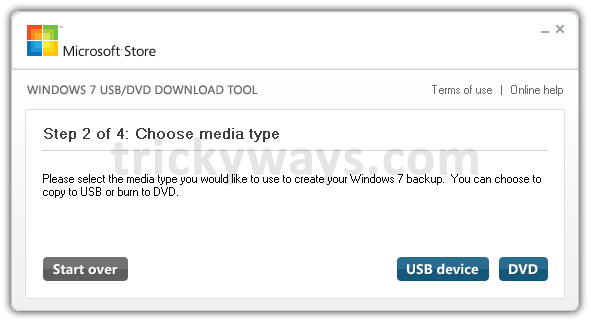
Choose media type USB device. If you want to burn a DVD skip and see Step-12
Step-8
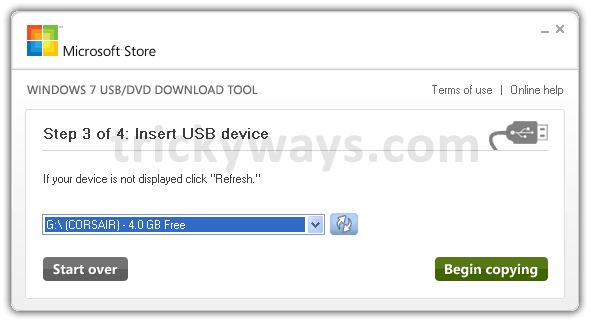
(Don’t forget to Backup your USB device data first)
Insert USB device and hit refresh if not showing in dropdown. When ready click on Begin copying
Step-9
You may get the following messages, respond them
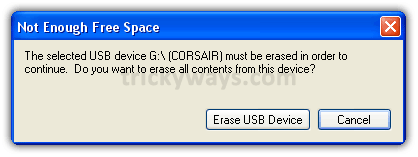

Step-10
This will take some time to create Windows 7 bootable USB, when finished close the window.

Step-11
See the Windows 7 contents in your USB device
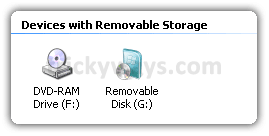
Creating Windows 7 Bootable DVD
Step-12
Choose media type DVD
Step-13
Insert a blank DVD disc into the drive and click Begin burning

this will take some time to burn DVD, close the window when finished burning.
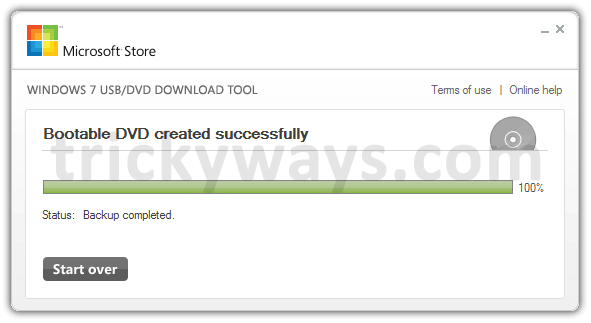
Now you have your own Windows 7 bootable USB or DVD what you have created. Install and enjoy the new Windows 7 operating system by Microsoft.
Leave some comments below and feel free to ask any question if you’re having any problem in creating Windown 7 bootable media.
thanks for this guide to create bootable windows 7 usb from ISO file
thanks for windows 7 articles and guidance
Can i use Windows 7 ISO without burning on DVD or creating USB?
Thanks
Can i use rewritable DVD to burn Windows 7 ISO on it
On step 4, I am getting an error. It reads, “Status: We were unable to copy your files. Please check your USB device and the selected ISO file and try again”
any help on this matter would be appreciated.