Microsoft redesign taskbar in Windows 7 and offers a new way of working with applications and windows. Its entirely new application-launching and window-switching mechanism that consolidates the functionalities from previous Windows OS Desktop mechanisms such as Quick Launch, Recent Documents, Notification area icons, desktop shortcuts, and running application windows.
You can customize Windows 7 taskbar according to your needs or working habits.
Pin icons to the taskbar in Windows 7
You may want to add some frequently accessed application shortcuts on to the taskbar. To add an icon to the taskbar
Just drag and drop the application icon on the taskbar.
You can also change the order of the icons on the taskbar, just click and drag the icon right or left to change its order.
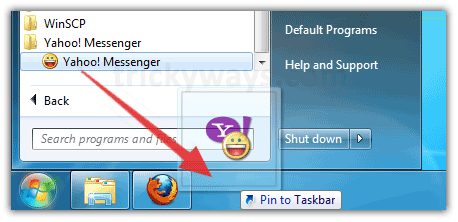
To unpin the icon from the Windows 7 taskbar just right click on the icon and select Unpin icon from the taskbar
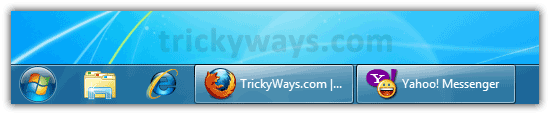
Make Windows 7 taskbar like Vista – (Show text with taskbar buttons)
Step-1
Right click on empty area of taskbar > click Properties
Step-2
In the properties windows click on Taskbar buttons dropdown and select one of the following options Never combine or Combine when taskbar is full
Hide notification area icons in Windows 7
Area on the right side of the taskbar in Windows 7 notify you about lot of things running in your computer like status, progress, new devices, Windows updates and much more. There may be lot of icons that you don’t want to show up all the time, you can customize this area by following these steps
Step-1
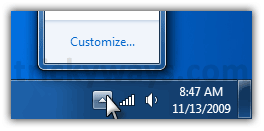
Click on tiny arrow icon and click on Customize
Step-2
In the notification area windows select the notification option for your desired application.

You can also turn off or on system icons like Clock, Volume, Network, Action Center. To do that click on Turn system icons on or off.
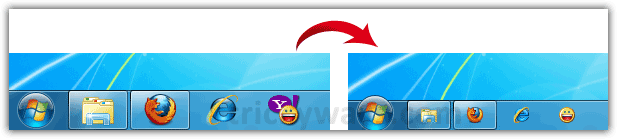
Make Widnows 7 taskbar smaller
Step-1
Right click on empty area of taskbar > click Properties
Step-2
In the properties windows Check the box Use small icons
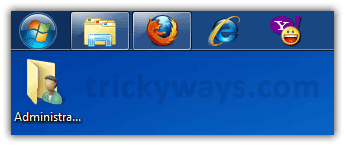
Change the location of the taskbar in Windows 7
Step-1
Right click on empty area of taskbar > click Properties
Step-2
In the properties windows click on Taskbar location on screen dropdown and select the location top, right, left or bottom.
– OR –
Another simple way to do that right click on the empty area of taskbar uncheck the Lock the taskbar option and click and move the taskbar to the right, top or left side of the screen
Auto hide taskbar in Widnows 7

Step-1
Right click on empty area of taskbar > click Properties
Step-2
In the properties windows Check the box Auto-hide the taskbar
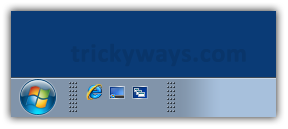
Enable Quick Launch Bar
How to Enable Quick Launch Bar to the Taskbar in Windows 7
Remove Start button
Remove Start Button in Windows 7, Vista, XP with Start Killer
thanks for these instructions to customize Windows 7 taskbar
how to hide clock from notification area?
Taskbar is great in Windows 7 and so easy with some great option like aero peak
Thanks so much for all the great stuff
Thanks, its easy
Would like to find out how to make the notification icons larger. At least the same size as what XP was. IDEAS? Help?
thanks
Paul