You can transfer files between Android and computer using your local WiFi network. To do that you need to install a free app “SwiFTP FTP Server” on you Android phone and then map a network drive on you computer to access Android phone.
 Both, your Android phone and your Windows computer must be connect to same wireless network. Lets see how to transfer files using WiFi between Android and Computer.
Step-1
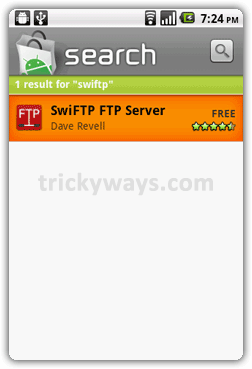
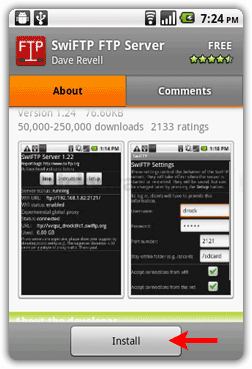
Search “SwiFTP FTP Server” in Android Market app, download and Install it.
Step-2
Run the SwiFTP app from Android.
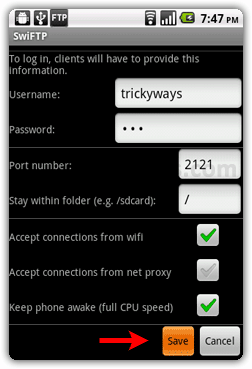
- You need to setup few entries like “username” and “password” that you have to enter while you need to access Android phone from computer.
- leave the “Port number” as it is or you can change if you getting some error while starting the SwiFTP server. There are some other settings if you want to change it.
- Tap “Save” button when done.
Step-3
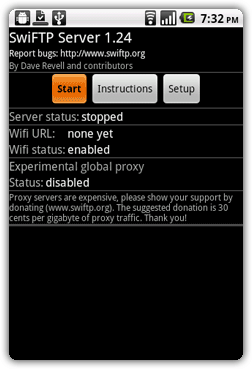
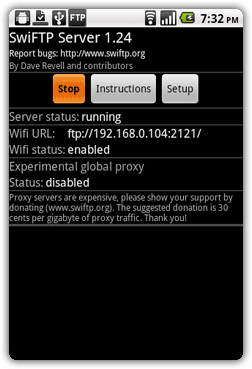
Tap “Start” button to start the FTP server, note down the Wifi URL e.g. ftp://192.168.0.104:2121/ and notice the SwiFTP icon is displaying on Notification bar. It recommended to stop the SwiFTP server if you are not using it.
Step-4
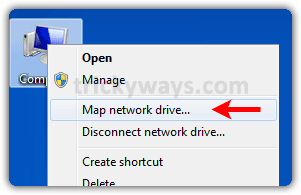
Right click on “Computer” icon and select “Map network drive”.
Step-5
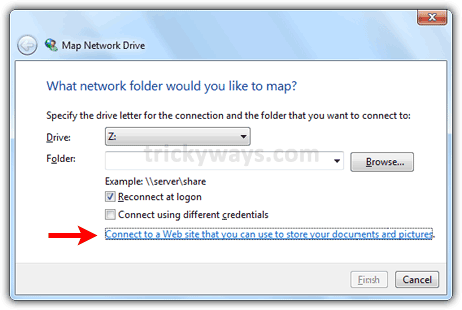
Click on the text link “connect to a Web site that you can…” as shown below in screenshot.
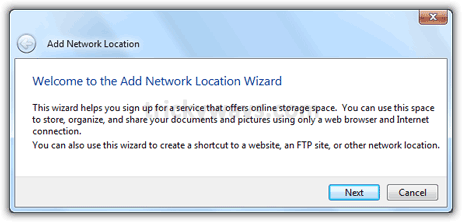
This will run a wizard to add a Network location, just click “Next” button.
Step-6
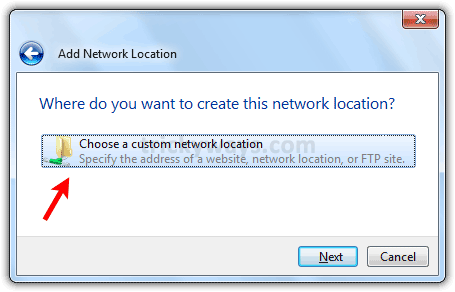
“Choose a custom network location” option and click “Next” button.
Step-7
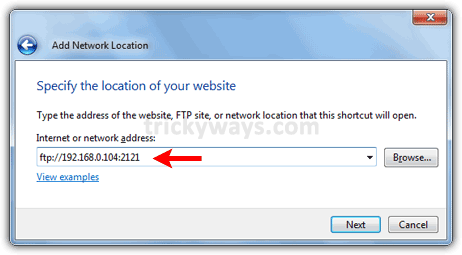
Type the Wifi URL/FTP address that you have noted in step-3 and click “Next” button.
Step-8
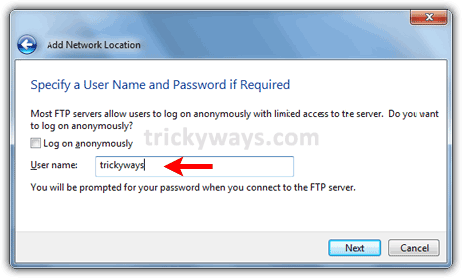
Un-check the “Log on anonymously” check-box, type the username that you have mentioned in SwiFTP settings on Android phone in step-2 and click “Next” button.
Step-9
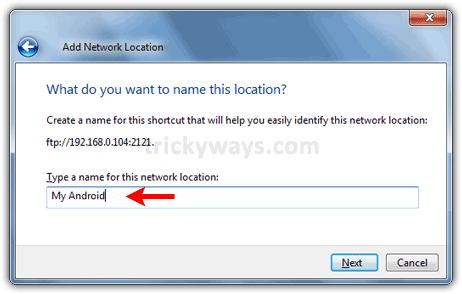
Enter a name for the location “My Android” or anything you want and click “Next” button.
Step-10
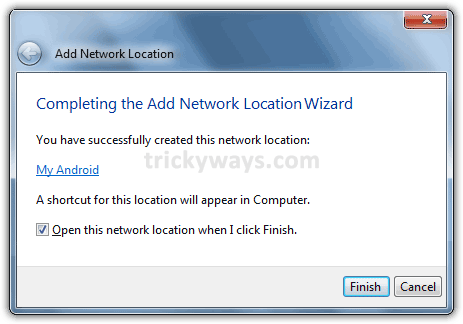
Finally make sure the SwiFTP server is running on Android phone and click the “Finish” button.
Step-11
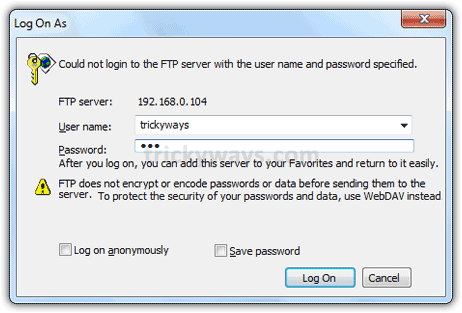
If the “Open this network location…” check box is checked, this will prompt for username and password that you have mentioned in SwiFTP settings on Android phone in step-2. Type the User name and Password and click “Log On” button.
Step-12
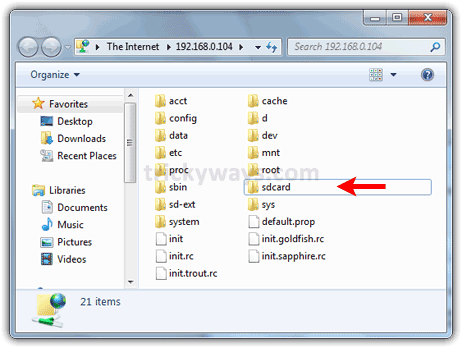
If you enter the correct username and password you will see the contents of your Android phone including SDcard. Now you can transfer files/folders between your computer and Android phone.
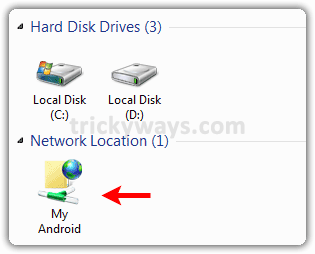
If you want to access your Android phone from your computer later, Double click “Computer” icon and here you can see the mapped network drive icon.
more Android tips
Very good!!
When i am trying to start Swiftp, i am getting some error, can you help me?
Run SwiFTP on your Android phone, change the port and save the SwiFTP settings, then try to start it.
hi. i am having some problems with this
my windows 7 computer says
could not establish a connection.
every time i try to connect.
is there a way to put in the password before connecting.
i changed the port number like 5 times trying everything from scratch 5 times.
I made a mistake by copyng URL this man used in his tutorial without looking at the url my phone showed (they were different). So be aware not to be making same error i have done. Just copy the url that your phone shows when starting this server!
Worked very well and saved me tons of time!!! thank you very much
Thank you so much for writing this!
Very excellent software, and very excellent explanation by trickYguy!
Thanks Trickyways Work like a charm
Nice tutorial. Thankyou
Awesome. Works perfectly!
Thanks for this very useful guide. And the screenshots were nice. Made it really simple to setup and get working.
Nice! Very nice!
I used filezilla instead, but still works like a charm!
Actually amazing stuff right here guys!
Worked perfectly! Great detailed instructions too. Thing is I was looking to load PC on Android. The.Android on pc is not very helpful because 1) my .phone is always on me, 2) when I charge my phone off my pc, I can access files. What I want is to remotely access my computer when I am not near it. Is that possible?
I’m on the phone with Motorola. They say ‘we don’t know of any application . . .zzzz…zzzz.”
I disturbed them.
I wasted electrical power calling them.
I left a wasteful carbon footprint.
Amazing that they get a phone out the door.
Thanks for his detailed info. I’ll try it now.
ps. I told the snoozer about this site though I could have just said banana pot pie for all it matters.
in step 3 when i press start botton then i have:
Wifi Url:UNKNOWN
why???plz help
my phone xperia X10 update 2.1
Works great, but how to access your computer from your android phone???
Great app! And VERY easy instructions. Thanks for laying it out so well.
After pressing the start button it says wifi URL: unknown
can you help please?
Make sure you computer and Android device is connect to the same WiFi network and WiFi is working properly.
Wow! .. Awesome .. thnx mn it worked
you are the man !!!
excuse my ingnorance…will this use my data bundle?
This will not use your Data plan. You are transferring over local wireless network.
thank you very much, worked like a charm
Very nice tutorial and very useful app for transferring files from android phone to pc wireless
I have tried several of these programs. This one is the hardest to set up but not a problem apart from the save button is very hard to get in the first place and when you try and connect it fails every time as there is no way to enter your password. Maybe this doesn’t work on Windows 7 very well or it is the same problem I have with all of these programs in that they do not work with BT routers. They all work on Sky or Virgin routers but not BT.
I have followed the tutorial and have SwiFTP running on my Android phone and signed in with user name and password. However, I can not connect from my computer. I get the following error each time:
Windows cannot access this folder. Make sure you typed the file name correctly and that you have permission to access the folder.
Details: A connection with the server could not be established.
I have tried changing the user name and re-booting my phone with no success. I also have an AVG firewall that I disabled and even with it disabled I get the same problem. Please advise on how to resolve this. Thank you.
Same thing happens to me on Vista.
To access the device from Vista:
Start Menu > Computer (or anything that’ll open up Explorer)
In the file path bar (or address bar or whatever it’s called) type in ftp://myusername:mypassword@192.169.1.100:2121/sdcard
Browse away
In future sessions, go to the start menu > start search and type “ftp:” (no quotes)… it should return the ftp address of your device as one of the results.
…basically it’s the same process as the one listed for WinXP, but I can’t seem to figure out a way to shortcut the process =b
THanks! worked like a charm
THIS IS A VERY INTERESTING TUTORIAL … BUT I HAVE A PROBLEM… AT STEP 7 WINDOWS TELLS ME “INVALID FOLDER, PLEASE CHOOSE ANOTHER ONE”, AND I CAN’T PROCEED …
THE ADDRESS IS CORRECT, SO I DON’T KNOW WHAT TO DO … CAN SOMEONE HELP ME?
This was extremely helpfull. thank you!
also this app is really nice, you have saved me alot of time 🙂
tengkyu tengkyu tengkyu.
THANK YOU!!!!!!!!!!!!!!!
I installed swiftp, but on pressing start as per your instructions, it is not displaying any wifi url. It is displaying “unknown”. What shall i do? Pls help
When I click on the SDCARD I am not able to find my pictures on the DROID 2. What file are they under? Could they be on the DROID 2 hard drive and not available? Is there a way to access them from the hard drive on the DROID 2?
it tells me URL unknown. I have a netgear router on my cable internet with password required. I also tried at my work where no password is required and received same URL Unknown.
Appriciated 🙂 amazing….after reading this, was a piece of cake 🙂 thanks a lot
gracias muy buen aporte