Changing Mac computer name is important and it must be something meaningful specially when you are on a network and how others will find you on that network . Most of you guys may already know how to change Mac system name but this is for those who don’t know that follow this step by step guide to change its name easily.
Step 1
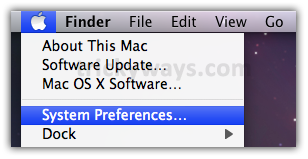
Click Apple logo and select System Preferences
Step 2
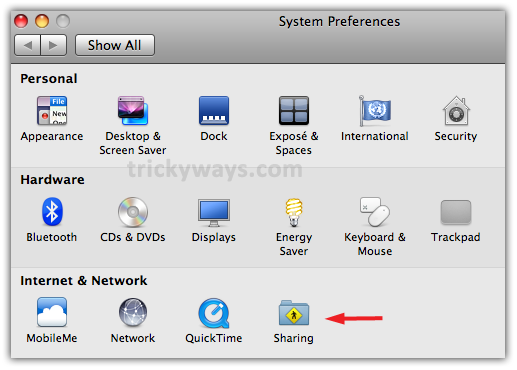
In Internet & Network click on Sharing option
Step 3
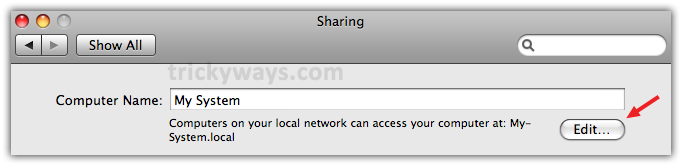
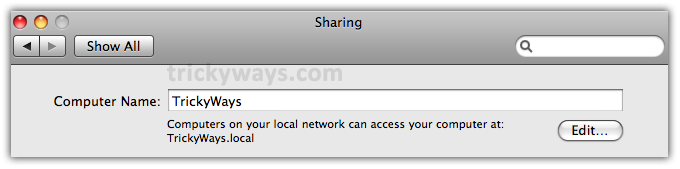
Here you’ll find the Computer Name, click on Edit button to change computer name
Step 4
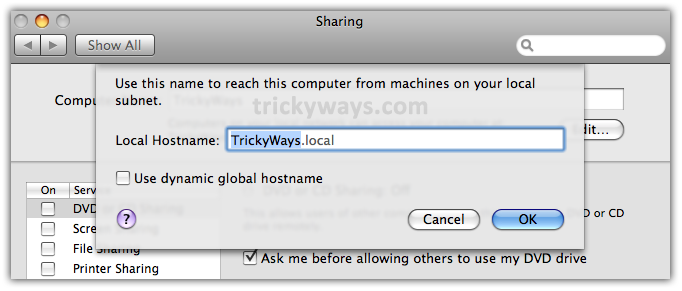
Here type new computer name and click OK button
Step 5
Now, your computer name has been changed
Thanks, now i have proper mac computer name on my network
Thank you very much. I bought mac computer and had some annoying mac computer name, i have successfully change my mac name.
Is there any way to change mac name from mac terminal?
Now Mac with my name, Thanks for help
I am using Mac snow leopard and its very easy and useful.
Any specific reason to change mac name?
Shows your ownership
I didn’t know before reading this article that how can i change my mac name
wish to see more on Mac