Change your desktop look and feel by applying a nice background called wallpaper. You can change the mac wallpaper to one of the patterns, colors, your own or pictures or wallpapers that come with Mac OS X.
If you want to apply or change desktop wallpaper in Mac OS X, then follow the steps to do so.
You can also see How to change screensaver in Mac OS X
Step 1
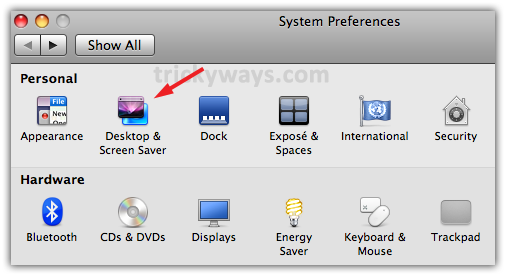
Click on Apple logo and go to System Preferences

Step 2
In Personal click on Desktop & Screen Saver option
Step 3
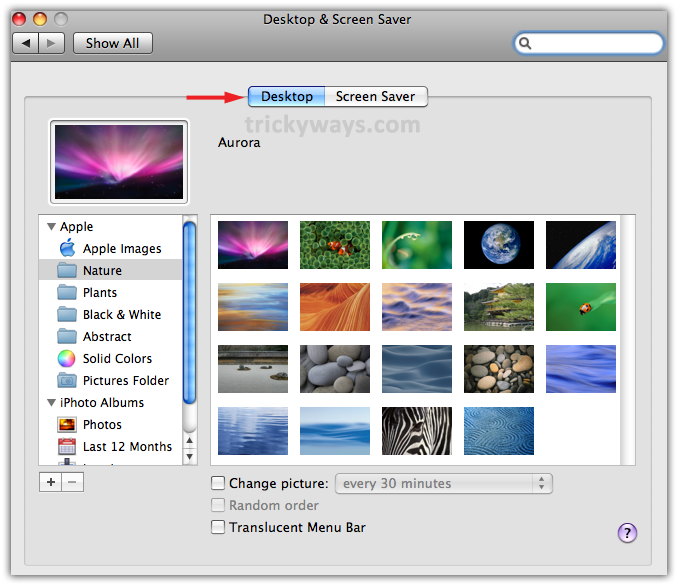
Select Desktop button. In left panel of screen you’ll find all wallpapers which you have on your system
Step 4
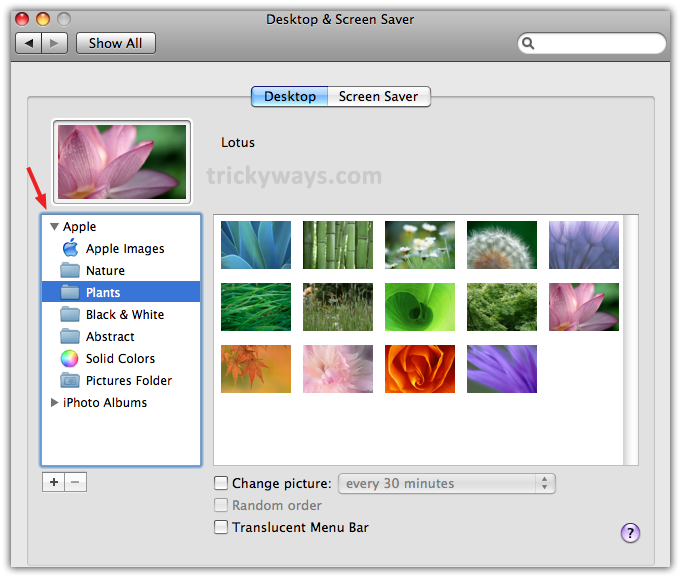
Click on any wallpaper of your choice, immediately it became applicable on your screen
Step 5
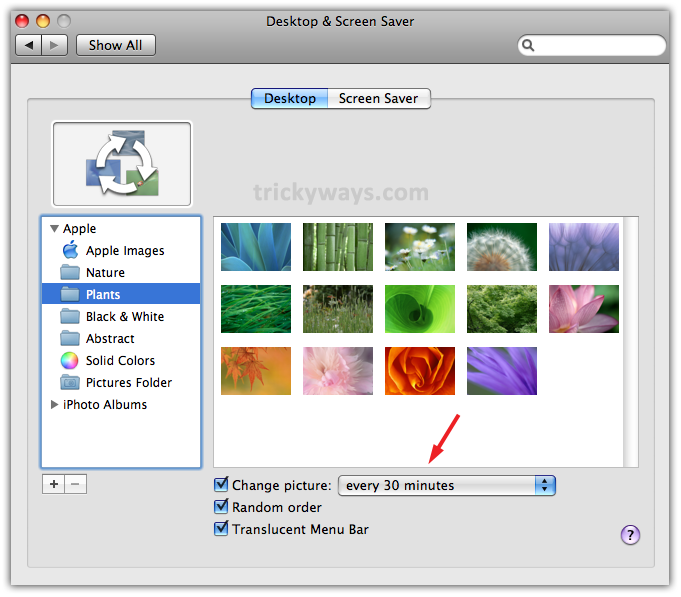
You can also set timer to change a wallpaper randomly after a fix time. So mark Change picture check box and then set time from a drop menu according to your choice
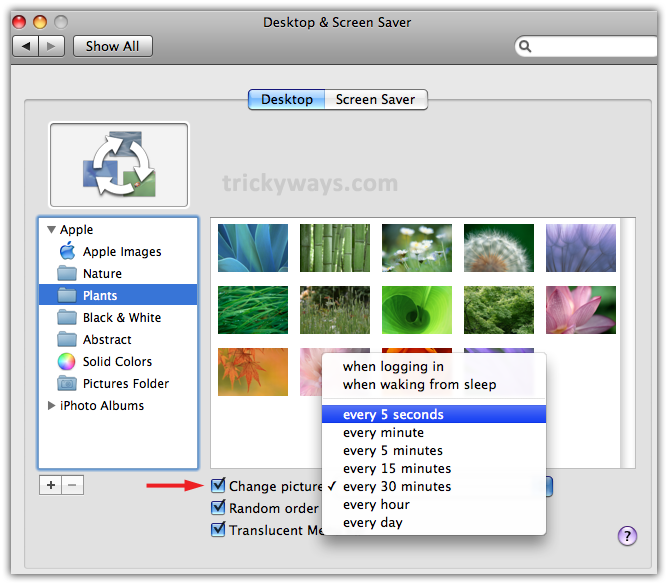
We set here Change picture time after every 30 minutes, Random order and Translucent Menu Bar check boxes are also marked, and just quit from the screen to apply all the changes made
Useful posts for beginner, keep it up
Where are you from? Is it a secret? 🙂
I’m using Mac Lion OX 7.1 I want to change the time of the desktop & screen saver to 10 and 15 seconds. Currently the only choice I have is the 5 second and then a longer time of 1 minute…how do I make a manual over ride change? Thank you
I am trying to change the desktop picture change times to 15 or 30 seconds and there must be an app but i can’t find it.