This is a step by step guide which leads you to Jailbreak iPhone 3GS OS 3.0 by using RedSn0w in MAC OS X environment, If you are Windows OS user go to Jailbreak iPhone 3GS OS 3.0 with RedSn0w in Windows.
Jjust make it sure that you have installed iTunes 8.2 on your Mac system. First of all create a folder on your desktop with name RedSn0w, just for ease. Then download the following files and save in your RedSn0w folder.
- RedSn0w: Mirror 1, Mirror 2 (RapidShare), Mirror 3 (Torrent)
- OS 3.0 for 3G: iPhone2,1_3.0_7A341_Restore.ipsw
Now, Takes a Start to Jailbreak iPhone 3GS OS 3.0 with RedSn0w
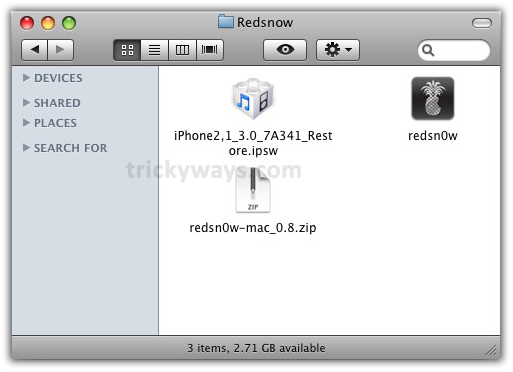
Open your created RedSn0w folder where you saved the downloaded files and unzip the RedSn0w zipped folder into the same folder. After that your RedSn0w must look like this as following window shows
Step 1
Connect your iPhone 3GS via USB to Mac computer and run iTunes

In iTunes window select your iPhone from left panel. Hold down the Option key and click Restore button. Restore helps to avoid the wastage of space on iPhone 3GS device
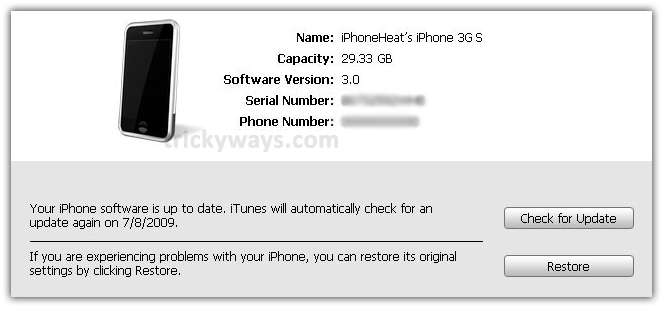
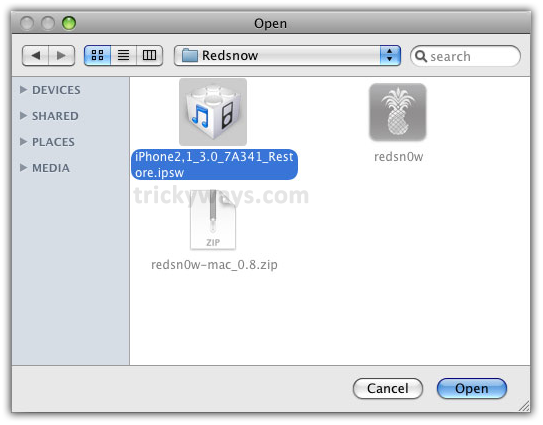
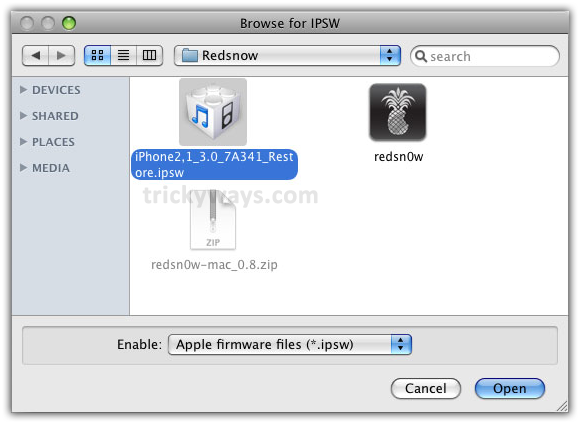
Open you RedSn0w folder from desktop, select iPhone2,1_3.0_7A341_Restore.ipsw file and press Open button. By doing this iTunes starts restoring your iPhone firmware to iPhone OS 3.0
Step 2
When iTunes completes restoring iPhone fimware then navigate to your Redsn0w folder and double click on RedSn0w.exe to execute it

Step 3
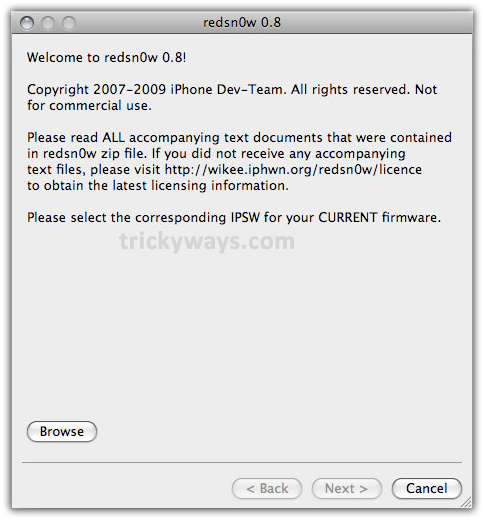
Now click on Browse button and navigate to your browse to your RedSn0w folder, select iPhone2,1_3.0_7A341_Restore.ipsw file and click Open button
Step 4
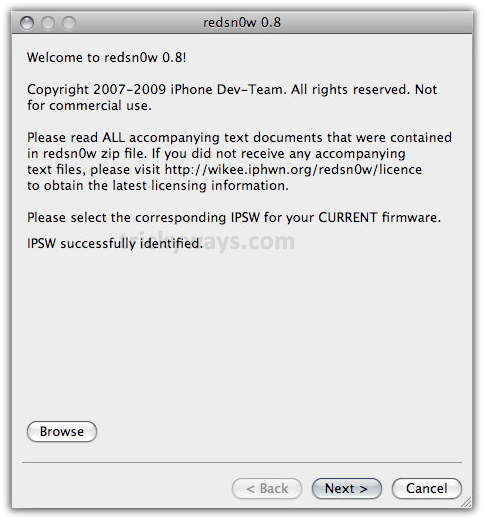
It’ll perform verification of your firmware, when get complete click on Next button
Step 5
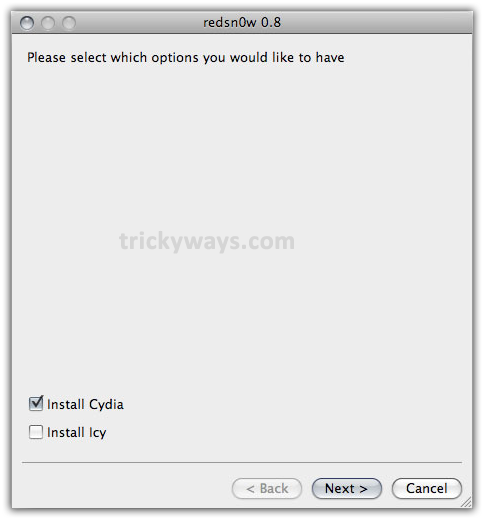
Mark the check box to install Cydia and click Next button
Step 6
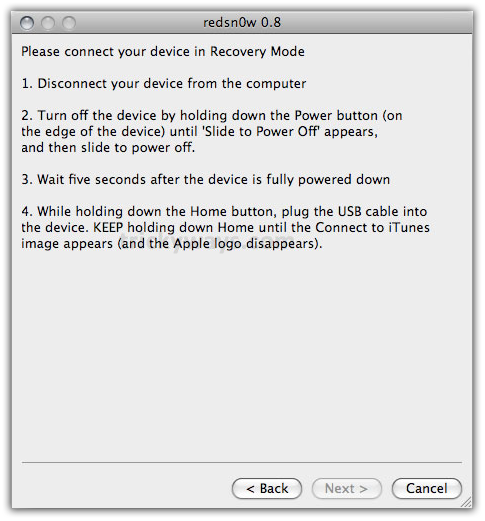
Now, just follow the RedSn0w instructions as it guides to get into Recovery Mode
Step 9
When you successfully get into Recovery Mode, with some processing your iPhone device will Reboot, so wait until it finish
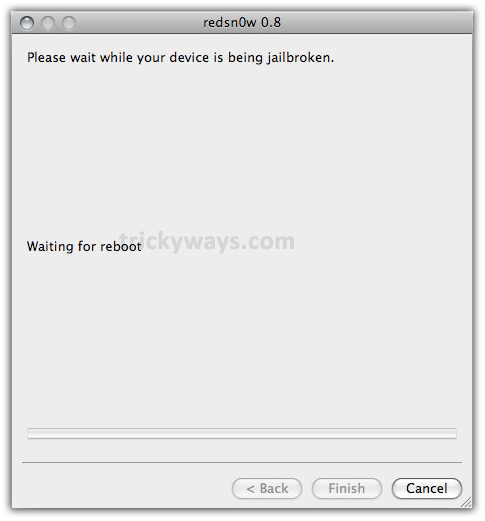
Step 10
Now RedSn0w start uploading new RAM Disk to jailbreaking iPhone 3GS
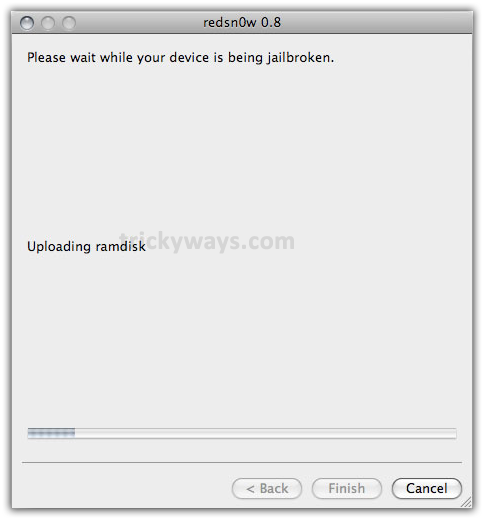
Step 11
When RedSn0w complete processing it’ll give message Done, so click on Finish button
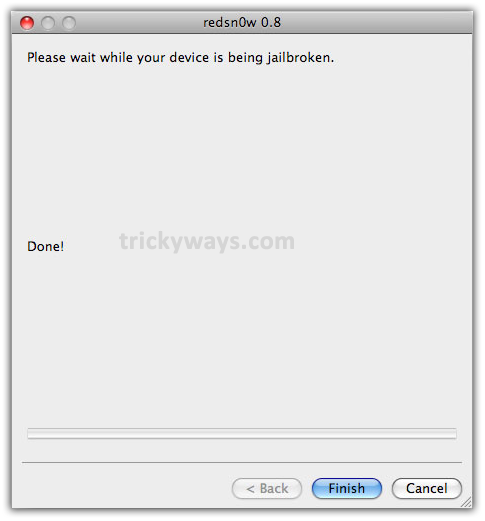
Now your iPhone is Jailbroken and you’ll find sweet Cydia icon on Springboard.
Try to Jailbreak iPhone 3GS OS 3.0 with RedSn0w with our provided guide and write us in comments about your experience.
I love the way you telling how to jailbreak iphone 3gs
Followed these steps. Now my phone has no service. Any thoughts?
I got it to work. I had to skip step one. You can re-use redsn0w v0.8 to jailbreak today’s 3.0.1 update. Just let iTunes update or restore you to official 3.0.1 then run redsn0w. The only “trick” is that when redsn0w asks you to identify the IPSW used, point it at the 3.0 IPSW instead of the 3.0.1 one.
Very good clear instructions to jailbreak iphone 3G S 3.0
fabolous way of instructions
how to jailbreak iphone