If you want to convert a Mac disk image file DMG to ISO format than its not much a difficult task. This conversion could be done through Mac Terminal easily.
The reason behind this conversion is that DMG is a file format which works on Mac only but if you want to transfer any DMG file to Windows system then first you have to convert it to Windows compatible file format ISO, otherwise the DMG file is useless for Windows.
So, follow the instructions written below to convert DMG file to ISO format.
Step 1
Click on Finder

Step 2
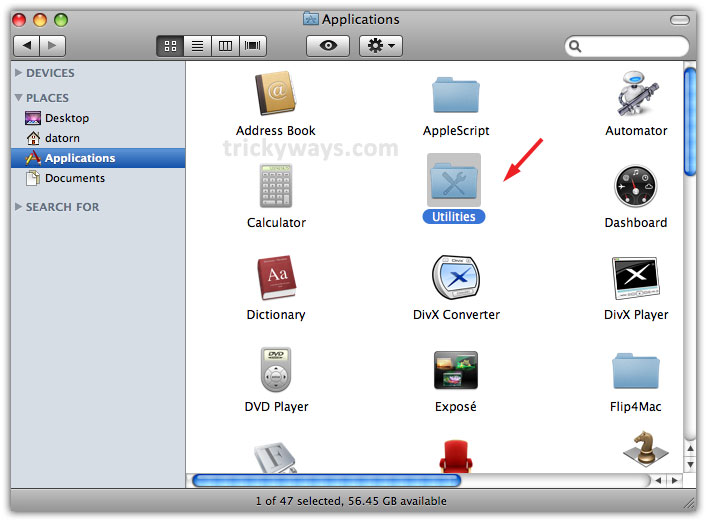
Click on Applications, and then click Utilities
Step 3
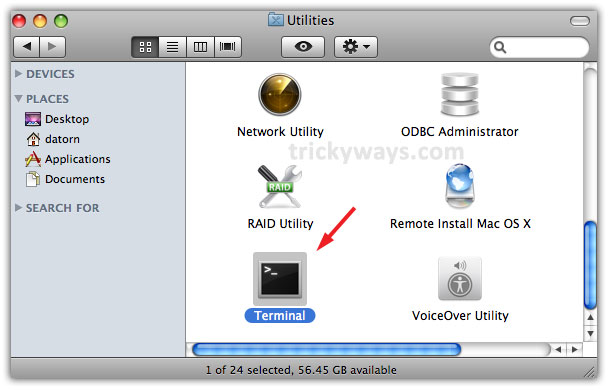
Double click on Terminal to launch

Step 4
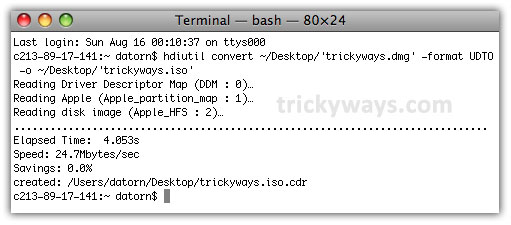
In Terminal window type the following command and hit Enter button from keyboard. Here trickyways.dmg is our provided file name
hdiutil convert ~/Desktop/’trickyways.dmg’ -format UDTO -o ~/Desktop/’trickyways.iso’

Step 5
When Terminal completes process, you’ll find a file with .iso.cdr extension, as here is trickyways.iso.cdr besides the trickyways.dmg

Step 6
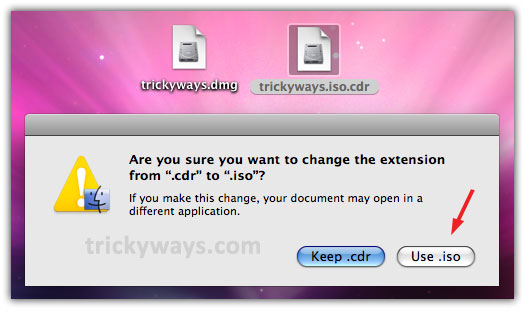
Click on trickyways.iso.cdr file & press enter to rename it. Delete .cdr extension


When you’ll try to delete .cdr the following Window will pop up, click on Use .iso option
Step 7
Now the extension of file is trickyways.iso

Hey. Great hack, but I got an error:
hdiutil: convert failed – No such file or directory
Why would I be getting this?
Make sure you are giving correct file path of DMG file
Trying to convert according to the above mentioned process, this is the result I get on the terminal:
hdiutil: convert: only a single input file can be specified
Usage: hdiutil convert -format -o [options]
hdiutil convert -help
Tell me the terminal command that you are typing to convert DMG to ISO
Im getting the same problem all I am doing is what you say to do. pressing enter gives me that same error.
Hi! I’ve used the same command to convert dmg to iso as written above and its absolutely working. Send me your command what you are using, possibly I can help you?
I don’t know why it always says my permission denied when I attempted
You’re a babe! It worked, unlike all the other codes I tried 🙂