Setting up Gmail in Apple Mail is very easy process, and it takes just a few minutes. Before starting the process we just remind as a prerequisite that you must have a Gmail account to do that, or in case if you have not Gmail account then first create your account on Gmail and then proceed further.
Here, is the process which leads you to connect your Gmail with Apple Mail.
Step 1
Login on Gmail and click on Settings at right corner of your screen

Step 2
Click Forwarding and POP/IMAP and click on Enable POP for all mail (even mail that’s already been downloaded) and click Save Changes button

Step 3
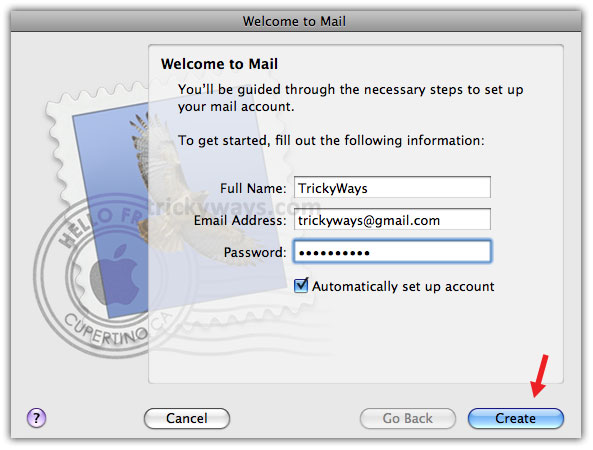
Launch Apple Mail from the Dock, and enter your Full Name, Email Address, Password and select the check box for Automatically set up account and click Create button
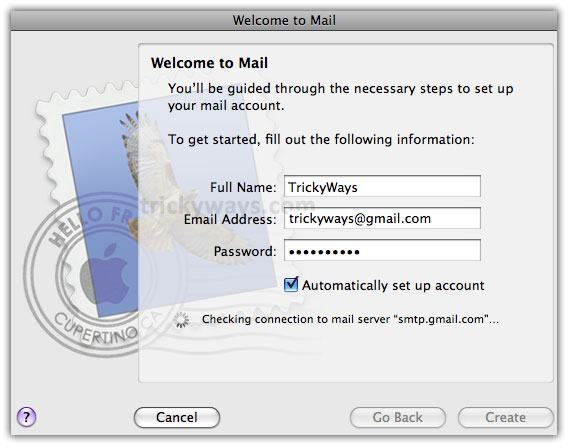
It does some processing to get connect with smtp.gmail.com mail server
Step 4
Here, your can see the Gmail account’s emails are downloaded to Apple Mail

If you still have any question, Leave comments below…
See also: Move emails Outlook to Apple Mail
Thanks
Good stuff, clearly explained, that’s why I’m asking this: do you know of a simple procedure that would allow transferring all my mails, including attachments (some 10 years old) from OS X Mail to GMail? And keeping the folders’ organization?
Sorry to bother you if this has already been explained elsewhere but I did a lot of googling and couldn’t find the procedure.
Thanks and Best Regards
This may be helpful for you check this link
How do I sign out of gmail? What icon do I use if any? Help!
Alicia