Create iPhone ringtones free by using iTunes and music files that you have on your computer; you don’t need to pay for iPhone ringtones. Just follow the guide below to create iPhone ringtones and then transfer to your iPhone for free. This method works on both Windows and Mac.
Requirements
- Download and install iTunes
- Song or Music file that you want to convert into ringtone
- Don’t use music file downloaded from iTunes Music Store these songs have DRM (Digital Rights Management).
- Only use those songs downloaded form DRM-free (P2P, Amazon, etc.) or ripped from a disc.
STEP-1
Open music file in iTunes that you want to convert to iPhone ringtone. Play the file and note down the start and end time of your favorite part that you want to extract form music file (Make sure it is not more than 40 seconds).

STEP-2
right-click on the music file and select Get Info

STEP-3
Under the Options Tab, enter Start time and then Stop time as well. Press the OK button. For example, I want to create first 30 sec ringtone, so the Start Time is 0:00 and Stop Time is 0:30
Note: Make sure ringtone time is not more than 40 seconds. Otherwise, you could not sync with your iPhone

STEP-4
Right click on music file again and select Create AAC Version
OR
Choose the file, click on menu Advanced and select Create AAC Version.
OR
on Mac OS X:
iTunes>Preferences>Advanced> Importing and change theImport Usingdrop down menu toAAC Encoder.iTunes>Preferences>General>Import Settingsbutton and change theImport Usingdrop down menu toAAC Encoder.
on Windows:
Edit>Preferences>General>Import Settingsbutton and change theImport Usingdrop down menu toAAC Encoder.

This will extract and create a new AAC version of file as shown below

STEP-5
Drag and drop that new file on your desktop
(In Windows you can Right-click on new file and select Copy and then on your desktop right-click and Paste)
STEP-6
Change the file extension from .m4a to .m4r
If the extension of the file is not showing after the file name.
Windows XP
Double-click on
My Computer.Click on the
Tools menu athen Folder Options.Click on
Start Button.Type
Folder Options in Search field and click on Folder Options above in Search results.Windows 8
Hid windows key from keyboard and type
Folder options, select Folder options from results.This step is same on all Windows versions: Click on
View tab and un-check the Hide extension for known file types option in Advanced settingsClick
OK buttonon Mac OS X:
select file and then click on its name and change the file extension from .m4a to .m4r and hit return from keyboard, this will prompt Click Use .m4r button
on Windows:
Right-click on the file and select Rename change the file extension from .m4a to .m4r and hit enter, this will prompt Click Yes button
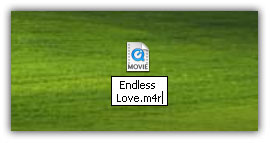
STEP-7
Now we don’t need AAC version file in iTunes so delete it, Right-click on AAC version of file select,Delete This will prompt for confirmation hit Remove then Move to Recycle Bin/Trash

Transfer Ringtone to iPhone
We made ringtone successfully and copied it on the desktop. Now we need to transfer it to iPhone.
STEP-8
Make sure you can view left-panel and the main Menu of iTunes.
If the left pane is hidden in iTunes press Ctrl+S keys, show it.
If the main menu is hidden press Ctrl+B to show it.
Make sure Tones, or Ringtones option is showing under the section Library on the left-panel of iTunes (see screenshot below).
If not, click on the Edit menu select.Preferences On this window under General tab find and check the Tones or Ringtones check-box (according to iTunes version) and click OK button.
Now go to desktop where you saved ringtone file, double-click on the file, This will automatically added to Tones / Ringtones section in your iTunes.

STEP-9
Connect your iPhone to computer, browse the device from iTunes and sync the Ringtones


After sync completion of iPhone ringtones, check the new ringtone in your iPhone under Settings > Sounds > Ringtone

Note: Don’t forget to restore the STEP-3 to original start and stop time. To do that un-check both check boxes of Start and Stop time and hit the OK button.
Please leave your feedback, or If you find a problem in making a ringtone, please reply here below in comments form so we can help you to create iPhone ringtones.
See more iPhone Guides:
Enjoy free iPhone ringtones……
Hi there, your guiding steps were amazingly clear and easy to follows and I am now have some fantastic ringtones in my iphone. You made my day. Cheers, Jon.
your instructions are as great as everyone else’s except that yours and no-ones seem to work on my computer with ITunes 9.1! there is not an option to “Convert to AAC” in Itunes 9.1.
step 1. right click song and select start and stop times, got it! step 2, after clicking ok you right click again and click “convert to AAC, not possible! that option is not present! any other ideas?
Step4 is Select file and click on iTunes “Advanced” menu and select “Create AAC Version”.
I read through every comment. I still can not get the convert to acc option. I have changed folder options, gone in through advanced, tried the ringtone box. wtf I feel so stupid. I have been trying to convert my ringtones for months. What am I doing wrong? Please respond.
Its 100% working, Do it step by step.
First select file from list and then find “Convert to ACC version” option under “Advanced” menu
I don’t have the option (anymore) of “create AAC file” either! I only have “create AIFF version”, and after I go through everything else and create the m4r file, and go to itunes and import the file, it refuses to show up in itunes! Not in the music library, and NOT in the ringtones library. :0( I think it’s because I have itunes 10.
I’ve created ringtones in the past, but can’t seem to anymore.
BOO!!
OK ok… my bad. I changed the settings in itunes to create AAC files when I import. HOWEVER… I created a ringtone, changed the extension to m4r, the file is IN THE RINGTONES FOLDER, but it will STILL NOT show up in my ringtones in itunes?! WTH?
I have a similar problem,kinda similar, In itunes the box on left side (the box where i should have RINGTONES) i don’t have ringtones :S
Try making your ringtone only 30 seconds. I was having the same problem with ringtones I was making 36 and 40 seconds long. Once I changed them to 30 seconds they synced straight away.
Genius, works a treat and easy to follow. 1 suggestion I would make is to create a new folder “My Ringtones” and copy the m4r’s there then you can Add Folder to Library.
really gud work…i was really enjoying my new ringtones…thanks a lot
hihi! just want say a BIG THANK YOU!!! It is so simple and I so love my new ringtones ! 🙂 Can these be converted for message tones as well please? Cheers!!
Sure you can convert it to Text Messages tone here: Custom Text Message Tone
hey
when i go to sync my iphone 4 there no ringing tone menu up the top to select is there anything i can change to get it up there
i get to the double click shortcut on desktop phase
and all it does is play the file , it does not import to ringtones???
just clock and drag it to your itunes folder
tried to drag the file into the ringtone folder but failed… any other alternative?
Make sure file extension is not hidden on Windows, then change the ringtone file extension and drag back to iTunes.
Yup same problem here. I don’t understand the suggestions below either.
when i got to the ringtones menu, on my iPhone it doesn’t show my custom ringtones… i followed each step exactly, and i tried it 3 times, is there any other way?
Same here. Anyone know a fix??
Same to me. I use an iPhone4.
Im having the same problem. All the steps worked and when I plug my iphone into my itunes and I go to the ringtones folder, there it is. Then I disconnect my iphone and go to the settings,sounds menu on my phone and try to select the ringtone i just created, its not there. But it is when I plug it into my itunes. strange..any ideas??
Has anyone figured out this solution to this problem? I followed all the steps just like you and it doesnt show up as a ringtone in my settings>sounds>ringtones.. there are no “custom” ringtones even after the sync when it was in my iTunes… ugh
hey guys i had that problem, i solved it by realizing, i had moved my file to another folder and had to readd it from that location and delete the previous one i had added. hope that helps some or all of you
I can’t even get the option to select start and end times in Itunes for my Iphone 4 on Verizon. Is there a way around this?
Thank you and it works for me. I’ve created 8 ringtones and all have sync into my iPhone4, but when I tried to select ringtone, only 2 were indicated, not the other 6. How could I select the other ringtones except these 2? I tried to delete the file from iTunes but it didn’t work. I just can’t delete the ringtone file from my iPhone. Please help
Thank you. Great instructions!
Excellent methos to create free iPhone ringtones, Thanks
i have created ringtone for my iphone 3gs
In step6 i have copied the ringtone file form itunes to desktop in windows, but the file extension is not displaying. Please help me to create ringtone form my iphone
First you need to show the files extensions to do that
Double click on My Computer
Click on Tools menu then Folder Options
Select View tab and uncheck the Hide extension for known file types option
Click OK button
Thanks for help
Hey thanks for this! Finally works!
Other forums were a replica of each other!
I just use your provided guide to create free ringtones of my favorite songs for my iPhone, thanks a lot for sharing this fabulous post. Keep it up
i always use this iphone ringtone maker to create custom ringtones for my iphone 3g but costs (USD14.95):
softdiggs.com/iphone-ringtone-maker.php
it can turn virtually any music or sound sources into iphone ringtones.
the site also offers a way to make free ringtones for iphone using only itunes.
can i use this on mac, i am using mac os x?
Yes, this method to create ringtones for iPhone can be used on both Mac and Windows
Does this work with itunes version 9.0? I’ve tried but it doesn’t seem to cooperate. Suggestions?
This Guide created with iTunes 9.0 to create iPhone Ringtones. What problem you are facing to create ringtones
i have tried everything on your eay to follow steps
i also have itunes version 9.0
BUT the ringtone is not syncing to my iphone
WHY?!?!?
i am having problems with this method. the ringtone option on my itunes doesn’t show like its supposed to according to the directions, any suggestions?
In step-4 if you didn’t find the option ‘Create AAC Version’ in iTunes 9
Go to iTunes menu > Preferences > Advanced > Importing and change the ‘Import Using’ drop down menu to ‘AAC Encoder’.
Now you will find that option while you performing Step-4
I had the same problem but it’s easy to fix:
In Itunes, go under Edit then Preferences and under the General tab, click the Ringtone box.
None of this is working with iTunes 9.
Can you tell me what problem you are facing to create ringtone?. i made this guide using iTunes 9
I’ve created the ringtone, it’s in iTunes, it says my iPhone has successfully sync’ed (it ran into problems when I didn’t delete the AAC version from the iTunes music library but I’m good now).
But, the ringtone doesn’t show up in my ringtones list on the iPhone when I go to Settings->Sounds->Ringtone. Any ideas?
Everything worked, even the synching… or at least it *seemed* to. But even though the file is showing up in the ringtone folder in both iTunes and iPhone, it is not showing up as an option under Custom ringtones.
If you have synced the iPhone properly then it should be in your iPhone.
I have the same kind of a problem. Every think is going well but the new ring-tone doesn’t show up in my iPhone (3GS). I did this process properly several times. The ring-tone file length is 15 sec. I’m using Windows 7 and the latest version of iTunes! Any ideas?
Delete the AAC version of file that you have created. See step7
I have deleted the AAC file! Anyway it doesn’t work! I followed all of the steps one by one!
I don’t have any prob. this guide is perfect, you must be doing something wrong. Try to do once again
I also have the same problem. Everything is successful and the ringtone is in my ITUNES ringtone file, but after I sync, it does not show up on my phone. I have tried it 3 times.
I am having the same problem, except some of the ringtones make it to my IPhone, but the rest do not. Weird, I made 12 ringtones and only 5 of them show up on my phone…help would be nice…thanks for the instructions, very detailed.
I am having the same problem. Everything works, it shows up in my library under ringtones, but does not show up on my phone as a custom ringtone. Any suggestions? I have the new iPhone
Thanks!
It don’t matter which iPhone version you are using, this is working with iPhone 4 as well.
Delete the file form iTunes after copying to desktop and then change file extension and add to iTunes.
Feel free to reply.
you need to go into your iPhone through iTunes and check ringtones under the music option. or it may be the only label called Ringtones
Have done everything. It still doesn’t show up.
I had the same problem as Marge, so I printed off the directions and followed them to the letter. I found that I’d ignored the statement “Don’t use songs downloaded from iTunes Music Store… Only use songs DRM-free or ripped from a disc”. I followed all steps again, using a track ripped from a CD, and hey presto! It worked! I’m using Windows Vista, iTunes 10 and iPhone 4. My advice is – print the instructions and read EVERY line of them!
I read all the comments posted on #11 by the different users. I had the same exact problem and it was driving me crazy because i thought I followed every step perfectly…all but just a little detail was wrong. The ringtones I created were under 40 seconds long but over 30. When I changed them to be under 30 seonds long, it magically worked!
Tricky, you’re the man! thanks for give us all a way to free customized ringtones.
I’m so close but so confused. There is no ringtone option in my iTunes library.
see reply to comment#164 to show ringtones option in left panel.
thanks for the article, and thanks for your comment TEK. I tried 40s and 30s without success but 29 sec works.
i tried to use this but when i click the icon that i saved on my desktop to press the f2 button it didnt suggest anything where i had to choose yes so its not even showing up in my ringtones folder…. help please!!!
If you are on Windows: select file and press F2 key from keyboard and change the file extension from .m4a to .m4r and hit enter, this will prompt Click Yes button.
Then perform the step-7 and so on as given above in the post, Fell free to ask any question, Thanks
It works pretty well, I don’t know why you guys have problems to create iPhone Ringtones using iTunes, I even create rigtones through iTunes 9.
Harko,
how did you did it? just follow every single step or did you did something different?
the problem i do everything until i get to the point to the create ACC it looks like it’s doing but i dont see the copy of the file.
ok so, i got everything work except when i press f2 on the keyboard, the thing just goes to like…rename the song. so i i put the mr4 after the name and when i double click it it doesnt open on the ringtone folder….ANY HELPS?
Are you on Windows or Mac?
Did you check the Ringtones section of iTunes as shown in Step-8 screenshot?
Hi, mr4? The original was m4a all you need to change is the a to r. It becomes m4r.
I am using iTunes 9 and iPhone 3G3 with OS 3.1 and I can create the ringtone in iTunes but it will not transfer to ringtones my iPhone.
If I sync with the button on the ringtones tab, since I already have ‘sync manually’ selected on the summary tab it insists on deleting my entire music library before syncing ringtone. The ringtone is not on the iPhone after this either.
Any thoughts? Thanks!
Only use DRM-free songs to create ringtones for iPhone.
– Don’t use songs download from iTunes Music Store these songs have DRM (Digital Rights Management).
– Only use those songs download form DRM-free (P2P, Amazon, etc.) or ripped from a disc.
DO you manually manage music?
If so, I believe that you must drag ringtones, etc over as well. I don’t think you can sync and manually manage at the same time.
I have the same issue on my 3gs. The ringtone shows up in itunes when I browse to my phone but it isnt in my phone. Also, when I try to sync ringtones it wipes my entire music library.
Please help…?? The ringtones tab in itunes stays blank though
Check steps 1, 6 and 7 carefully. Secondly you must sync your iPhone to that computer (iTunes) from where you have synced your music and apps. Don’t use any other computer.
Thank you, I just got my 3GS iPhone yesterday and lost the ringtones from my old Verizon phone. At first I paid Apple .99 to convert one of my songs but your plan works like a charm!!!
I am really waiting for the answer to goosekicker question before i try because i have the same set ups.
Please somebody help us here….
i had problems making it work too….if the extension doesnt show up when you drag the file onto your desktop you should first go to the start menu and click on my computer and then the tools menu…choose folder options and click view….there u should see the box thats marked “hide extensions for known file types” unclick it and click ok and try repeating the process that worked for me using itunes 9
SCORE!!! You’ve so just helped me… I’ve been at this for hours. Problems solved
Hi Guaflo! i followed all steps written by trickYguY to create iPhone ringtones
hey man, thanks a lot, really. great step by steps after apple really doesnt give any info or instruction to other people.
i tried to create ringtone using itunes 9. After I clicked Create AAC Version, i saw the status at converting, i even hear a small sound after conversion but the AAC file did not appear. Please help. Thanks
See the Music section under Library in your iTunes, AAC ver. of the file should be there.
Great Thanks!
i have everything working – except sync to iphone. song is DRM free. It is in ringtones section of itunes, but will not appear in ringtones of iphone?
You need to Sync the ringtone with your iPhone.
i have created my ringtone using the steps. it appears on my ringtone library on itunes but not appearing in my iphone sync ringtones list? may i know how can i solve this? thank u
* Make sure your ringtone duration is not more than as specified in Step-1.
* Also Perform the Step-6 and 7 carefully
Nice guide to create free ringtones for iphones
Nice step by step guide, no need to pay for ring tones
Thanks
Thanks goodness Apple removed DRM protection from iTunes, that removes a step from the process.
hey this is good it worked the first time but now it wont show up in the ringtones folder on my iphone what could be wrong?
I am still having probs (same as goosekicker)…can create ACC file fine, renamed on desktop but when i drag back to itunes it just goes back into main music lib not ringtone folder. I am using DRM free songs
You don’t need to drag back the file to iTunes. After changing the file extension from .m4a to .m4r, just double click on it this will automatically added to Ringtone section of iTunes. To confirm click on Ringtone section as shown above in Step-8.
Feel free to ask!
I’ve got the same problem as goosekicker. No problems creating the ringtones and getting them in to the iTunes ringtone folder but can’t get them on to my phone as when I tick “sync ringtones” I get a message saying “Are you sure you want to sync ringtones? All existing songs etc will be removed from my iPhone.”
Tried it and it does, lost about 50 albums before I unplugged my phone.
Can’t drag them over to the phone ringtone folder either.
Help 😉
You cannot manually manage and sync at the same time.
managing music manually?
If so, you must drag ringtones, etc over as well.
The ringtones won’t drag over either.
I think its file renaming problem, if you are using Windows make sure show file extension option is enabled
– Double click on My Computer
– Click on Tools menu then Folder Options
– Select View tab and uncheck the ‘Hide extension for known file types’ option
– Click OK button
now rename the file from YourFileName.m4a to YourFileName.m4r. After renaming extension double click on it instead of dragging back to iTunes. I hope this will display back in Ringtones section of iTunes.
The file renaming is ok and if I double click the ringtone fron desktop it goes in to the iTunes ringtone folder with no problems. Only problem is getting it from
there on to my phone ringtone folder. Drag it across and it doesn’t add to my phone
Make sure you are extracting less than 40 seconds ringtone form the music file in step-3.
You can not sync ringtone longer than 40 seconds.
I’m only using 30s. Keep the advice coming. Sure I’ll get it sorted eventually 🙂
Did you delete the AAC version of file from iTunes after dragging the file to desktop.
I mean did you perform step-7.
Hi Mike,
I have the same prob a Weealb, I got to very last step, my song showed up in ringtone in iTunes. I sync many times, everything else are sync but except my song won’t show up on iphone. I deleted the short version 20 sec. of the song from music library but I kept the full length song with .mp3, not acc. Would you please help me?
Thanks!
Make sure the length of the tone is correct, approx 30sec.
ok, I have followed all instructions, I made 2 the first night, synced iphone, they were there and played great. I made more the next night, these will not sync to phone. I read somewhere to unclick all the ringtones, sync, then reclick them, sync again. Now my original two are no longer on my phone and none of the new ones. I have the (!) beside all ringtones in itunes. It says the original song cannot be found. I did notice that ALL my songs in itunes now are AAC files? what did I do wrong and how do I correct it? thank you in advance for all your help. Tracy
I’m having a few problems, I have followed directions exactly (including limiting my potential ringtone to a length of 35 sec and 30 sec) and can NOT get it to appear in my RingTone section of iTunes (I’ve tried double clicking it, which makes it play, and manually dragging it to the section). I also noticed that somehow ALL of my library is now an ACC Audio File, which perhaps might be the problem. Please HELP!
Am using iTunes 9.0.1 on Mac OS 10.6.1, have created a 10sec clip from a ripped CD. All ok including the change of the extension to m4r, but when I double-click that file, it does not show up in the ringtones section of iTunes (nor can I drag it there)
In step-5
– Drag AAC version of file to desktop
– Change file extension from .m4a to .m4r
– Delete the AAC version from iTunes (important)
– Double click on .m4r file that you renamed on desktop
now ringtone file should be in Ringtones section of iTunes.
This worked – excellent! Thank you very much!
Dude! it works like a charm
Very good easy to follow Tutorial, I had similar problem “not seeing the converted m4a file”, but your instruction to check the Music section under Library solved the issue.
it will be great if you can add this note to the tutorial, because it seems many are facing it
Keep the good work coming
Thanks for way to create free ringtones
hey i am havin trouble with once i hav done all the steps that u hav givin me but wen i changed the file name and clicked on it, it still doesnt show in my ringtones playlist nor itunes playlist it is really annoyin me as i want to b able to make my ringtones please help asap thanks kermitboy91
Okay I got it!!!! UNCHECK the hide file extensions. Then the HIDDEN .m4a shows up to you can now delete the .m4a and put in the .m4r, Awesome i have a knack for explaining!!!
Nope, this method used to work, but it doesn’t work any more with latest itunes9.
Doubleclicking (or dragging) ONLY adds the file to the music library but it WONT show up as a ringtone. In fact if you right-click on the file (in the music library, where it only shows up) there is now an option which appears called ‘Create Ringtone’ click on that and an error now comes up reading:
“A ringtone cannot be created from the song XXX.
You can create iPhone ringtones ONLY from songs purchased from the iTunes store.”
So it looks like Apple have monopolized this one and now it ONLY works with their files, DRM and all. Fascists.
I did as you said, i see the file in ringtones in my itunes, but can’t synchronise with iphone. I canæt choose “Selected ringtones”…
Hi
i brought an iphone 3g yesterday and i have try to follow instructions but its not working i cannot change format to m4r, im on windows vista and i havent got a my computer option or a folder option and ringtones does not show on my itunes 9… can u help pls???
thanks
hi,
ive done it now thanks for your help 🙂
free method to create iphone ringtones
thanks for these instructions to create free iphone ringtones
I have created the ringtone successfully and it comes up in my ringtones section on itunes, however, on the iphone sync it will not let me select “selected ringtones”
i have tried syncing everything, but it still doesnt come up on my phone anywhere! 🙁
p.s. other instructions were great 🙂
HELP!
Ringtone should not be more than 40 seconds
the guide is perfect. works with itunes 9.0
i just followed the steps to the letter.
thank you boss!
Same problem for me…I have been creating ringtones for my iphone for a while, so I know the process very well, but as soon as I upgraded itunes to 9.0, the ringtones will not sync to the iphone… I NEED HELP….
This guide created using iTunes 9, it should work.
I have been using this method to create ringtones for awhile but I can not get it to work in Itunes 9.0.2
Everything goes according to plan except when the m4r file gets transferred back to itunes.. it go to the Ringtones folder but it will be the entire length of the song.. not the 30 second edited version. This is driving me insane lol
I was having the same problem. Followed all the steps but on last step when I double clicked to add it to ringtones it did nothing. If you are having the same trouble with adding the ringtone after double clicking on it with the latest version on itunes 9.0.2.25, just
click on File then
click Add File to Library,
locate file on desktop click open
and it should be there. Just worked for me!!!
i love you and want to have your children! 😛 thanks for your help!
Step 4 doesnt seem to work for me. i make sure it’s 30 seconds long in the start and end time, but the new file is always 1:40 mins. I used to make ringtones with itunes 8 so…. help?
This guide created in iTunes 9, i am not sure about iTunes 8. Can you download and install iTunes 9 and then try this to create ringtone?
I’ve tried using itunes 9… it does seem to work. It was the same process for itunes 8 so i thought i would give it a go with itunes 9, but i get stuck a step 4…
Its working for me, you must be doing something wrong.
Thanks, its really free 😛
Thanks 😛 ringing new tones
Yes!!!! I succeeded to create tones for iphone through this method, thanks
Hey guys, im running windows I did all the steps looked at peoples comments but i still cant do it on my 3gs phone. I click on it on my desk top, it will go to my playlist but it wont go to my ringtones. I cant drag it there, i cant do anything with it. Any suggestions?
Before double clicking on file that you have dragged to the desktop make sure:
1- You have deleted the file from iTunes that created in Step-4
2- Show the file extension from Folder Options in Widnows, Do the Step-6 carefully.
Feel free to reply, thanks
your guided method really works to create iphone ringtones via iTunes
It´s working beautifully! thank you so much! do you know if It is possible to make the volume fade away slowly at the end of song?
cheers,
Thanks!. This saves me money big time, l0l!.
But i run into a problem wit some of my ringtones i’ve created, when i try to sync the ringtones to my phone, some of the ringtones d0n’t show on my iphone but it shows on my itunes!. Can you help me?!
Make sure total length of the ringtone is not more than 30sec.
I had the same prob with some ringtones appearing and others wouldnt. i just filled in all of the song categories eg name artist album etc. and it seemed to do the trick. give that a shot.
Still no joy with 3gs and latest iTunes. Have given up as I’ve followed all the instructions and the further points that contributors have made.
For those who have gotten to the point where they were able to sync the ringtone from iTunes to their phone but it did not show up in the Custom Ringtones I think I found the answer. I was facing the same problem.
So I tried it again. This time I went through the steps and just after creating the new ACC file I copied it to my desktop. Then I deleted the new ACC and the original MP3 from iTunes.
Then I renamed the file on my desktop from m4a to m4r. I double cliked it and then synced it. Now it works.
So it is impreative there is no version of the original on the iTunes music library.
thanks a lot for this method to create free ringtones for iphone.
much thankful for sharing this process to create free iphone ringtones
trickYguY
I looked and looked trying to find something that would work with Itunes 9….well, you had it and I thank you very very much. I just refused to pay 1.29 for ringtones that I already had on my PC. You made it so easy. I had trouble finding out how to rename the clip…then you gave specific instructions and made it EASY.
Thanks Again!
It have worked perfectly! Just one thing: if you had chosen “Manually Manage yor Musics” you cannot darg the ringtones from ITunes to Iphone, it just don’t work. I think we always have to sync it and this is not good for those who use the “Manually Manage”thing. You can Sync and then all your songs will be erased from the Iphne and the ringtone will be on your Iphone. But then if you Manually Manage again the ringtone still will be on your Iphone.
I think this syncing issue is the key thing that frustrates the heck out of me. I just keep music on a backpack drive (and an original set on my music server at home which I regularly sync with my backpack). Given this environment, I manually manage my music on teh phone. I love my iPhone but this whole syncing thing drives me nuts – I have much more music in total than the iPhone will hold, and just want the iPhone to hold what I tell it to. I run various laptops and netbooks for work, home and travel, and plug the backpack drive into whatever I’m using, since most of their drives are too small to hold my collection. Trying to manage the iPhone over multiple PCs and with email and contacts from Outlook almost manages to overpower the sheer delight of using the device. The first time I followed your great directions, and then sync’d the ringtone to get the ringtone on the phone I lost all my music and screwed up my contacts – all just to drop just one tiny file onto the phone. I was just soooo frustrated and annoyed.
Is there a 3rd party alternative to iTunes that allows drag and drop for music/data/ringtones etc without this nonsensical syncing?
Works like a charm on ITunes 9.0. THANKS!!!!
OK..spoke to soon. the first ring tone I created worked perfectly, just as advertised here. When i created another ringtone, using the exact same steps, it works, but for some reason will not synch to my phone. I’ve synched three times now, twice only using the ‘ringtone tab’ and once doing a full synch and it isn’t coming over.
I try this with iTunes 9 your guide works perfectly. thanks a lot!
OK..I’m good. I looked through the rest of the comments and I see others had the same problem. I had not deleted the file I created before I synched. Went back and did that, synched and it works like a charm! You are the best trickyguy!
Great!
I was using a program to make ringtones for a regular phone and bluetoothing them to the phone. My girl just bought me the 3GS. Tried do ringtones the same way. Wasn’t happening. I saw your guide and tried it. Worked the first time, no problems! You are the f@#$# bomb man! I really appreciate you takeing the time to put this up!
I must be a total idiot. I can get the ringtone into my itunes and apparently synced to my iPhone but I don’t see the new ringtone “custom” section of the ringtone selector.
I’m using iTunes 9.0.2.25
Be sure you delete the ACC file (in iTunes), before you click on the ringtone from your desktop. And be sure the file is less than 30 seconds.
I’m pretty sure that the ACC file was not in iTunes. I removed everything related to this ring tone from iTunes and then added it back and after a sync it was available.
Thanks!
Hi Jason – I had the same issue for awhile. I got around it by synching a few times while checking and unchecking the boxes in the ringtones section. Eventually the “custom” section just popped up and it worked like a charm!
having done everything as instructed i too could not get the created ringtone to appear on my iphone. itunes said it was there but the custom option would not appear.
I followed the above (having made sure all traces of the original file had been deleted) and sync with it selected, sync with it unselected and then sync with it selected again and it popped up on my phone as per the image on STEP 9.
Thanks for all the help, it is greatly appreciated.
See comment#147
ok so i have created the aac version but it still will not convert over to a ringtone it says i did not purchase it true itunes still?
Is there any way to tell if a file has DRM? I pulled another ringtone file down, went through the steps which have worked, but that file is still not coming over to my iPhone.
I’m having the same issue as Steph. I’ve made numerous ringtones on itunes 8 using these exact steps with no problems, but with the latest version of itunes, I enter the start and stop times totaling 30 seconds, but when I create the AAC version, the new song starts at 0 and ends at the ending time I entered. It won’t start at the start time, therefore making the new song much longer than 30 seconds since my chosen start time isn’t the beginning of the song. It’s completely ignoring the start time I enter even though the start and stop boxes are checked. Any suggestions?
Hey Frustrated. I nearly had a nervous breakdown trying to do this. I finally got to that stage you are at and had the same problem and i managed to fix it!!!!
My original song was 4 min something
i was entering start time 2:05 and end time 2:35 but it would make it a 2:13min song not a 30 sec song!!
What is happening if you listen to that new song is, it is starting where you want it but just going for the rest of the track (which was the 2.13min)
So now i went into the new ACC version (2.13min length) and entered a end time of 30sec, create ACC again and OH MY GOD a 30 sec track!!!!!!!!!!!!!!!!!!!
Then follow the normal instructions and IT FRIGGEN WORKED! I ran around my house like a idiot! It was the greatest moment of my life…. please keep in mind i spent over 3 hours trying to do this!!!
Good luck!!
Thanks for the input lil_leash
lil_leash, you ROCK!!! Thank you SO much, it worked!!! I had tried changing the start and stop times of the newly created AAC version, but didn’t think to make a 3rd AAC version and change those times. You’re a genius! THANK YOU THANK YOU!!!
I was having the same problem in iTunes 9…where the ACC file was NOT the start and stop time I indicated. It drives me crazy cause in iTunes 8 I had no problems at all…but suddenly after getting iTunes 9 (fresh clean install), it messes up the start, stop time. I’m starting to think Apple has caught on to people making free ringtones and purposely made it difficult for people in iTunes 9. Anyway…
I just want to make sure I understand this correctly:
–From the original song file, do the usual (check start & stop time boxes and enter in the times you want), convert to ACC. Example: Song is 3:25, I enter start 1:05 stop 1:35.
–The ACC file (I’ll call it ACC 1) that just got created, that now has the wrong duration.
Example: ACC 1 file is now playing for 1 min 40 seconds, instead of the 30 seconds I indicated.
–Go into that ACC 1 file and change the start & stop times again…and create another ACC file from ACC 1??
–So you should see listed in your iTunes: original song file, ACC 1 file (that had wrong duration) then another ACC file that was created from the first ACC.
…is all this correct?? Thank you.
i tired everything i must be the dumbass doing something wrong no matter what i do it goes back to music folder.
i created acc first
then i copyed it to desktop
then i deleted one from music folder
then i renamed it to .m4r
then try to drag it back to itunes and it automatically goes to music folder not ringtone folder someone help please
after you rename it, you do not drag it back in. Double click to launch it and it will automatically be in your ‘ringtones’ folder on your computer’s version of itunes. Then sync. good luck.
hi, everything worked out perfectly until i had to rename the file into m4r. I have windows vista and i don’t understand cos when I go to “computer”, there’s no option of “tools” to click on so i dunno how to enable the file extension option! please please help! thank you
Control Panel (be in classic view)
> Folder Options
> Click “View” tab
> un-tick “Hide extensions for known file types”
> click OK
hey ,
this isnt working for me neither.
i got this new laptop and iphone for christmas ,
i cant change the file to mpr or whatever .
i tried everything even your imput BIGROBERTO but its not workign 🙁 i have a PC btw , help !? 🙁
m4r*
This is best guide to create ringtones i ever found
Fantastic Tutorial!
I’ve had issues with other tutorials. My problem was solved by changing the CD “Import Settings” to AAC Encoder instead of mp3.
Just put on my favorite tracks as ringtones.
Thanks
OK, so I am using the latest version of Mac OS, iTunes, and have a 32g iPhone 3Gs. I have
1. Changed the stop time on the track I want to use to 0:26
2. Created an AAC version
3. Changed the extension to to m4r
4. Deleted the other versions of the song/file
5. Double clicked the new AAC file
6. Looked in “ringtones” and the ringtone is there and is only 26 seconds long
7. Gone to my iPhone menu and selected the ringtone (it is present)
8. Synced…
and now it doesn’t show up on the iPhone at all. There’s nothing. I even used the search feature on the phone and there is no file. What am I doing wrong?
Same problem here. I just got the 16GB 3GS, followed all steps mentioned – The m4r file shows up under ‘Ringtones’ in iTunes, is present in the iTunes folder on my comp – BUT does not show up on my iPhone. My ringtone is 29secs.
Pl help..
Same here. Windows XP, iPhone 4, iTunes 10.0.0.68 and I can get the ringtone to show up in the Ringtone folder, but when I sync the phone (even manually selecting the ringtone) it doesn’t show up on the phone. The file is 24 secs.
Thanks so much for the instructions! Just what I needed. I had a little trouble, but the extra comments from other users really helped me out.
Ha ha, as we say darn south in Portsmuff…you r the dogs bollox, Nokia was easy to do ringtones on and Steve Jobs was winding me up big time…now I have my ringtones thanx to you Trickyguy.Ta muchly
Very thank you…………
thanks for sharing your skills
MAKE SURE YOU DRAG THE RINGTONE TO YOUR IPHONE ICON, NOT THE RINGTONE FOLDER!!!!
I have done everything up to step 8, but step 9 doesn’t work. The file is in the main ‘ringtones’ file but not in the ‘ringtones’ file on the actual iphone. I click on the iphone file and i have the ringtones box clicked but nothing is listed there.
Why isnt the iphone ringtone file syncing with the computers ringtone file?
Everything is great … the ringtone is in my itunes … i tried to sync … it odesnt apear on my phone
Any ideas ???
TO GET AROUND THE SYNC ISSUE:
Follow steps 1-8, then when you have your phone connected, drag the ringtone to the column on the left that lists your phone, making sure to drop it on your phone icon, and NOT the ringtone folder.
Once you follow these steps, the ringtone will appear in your phone under ringtones.
In trying to do that, I get the big circle with the line through it..meaning no go. I tried both from the ringtones folder and from my desktop — dropping it right on the phone icon while connected, but not during a synch. Any idea?
Nice one randomone. Don’t know why I hadn’t tried that. Many thanks for pointing it out.
I’m off to make some ringtones 🙂
Works like a charm
MAKE SURE THAT THE AAC FILE IS 40 SECONDS OR LESS
Perfect! Tks a lot!!!
Amazing, all the other websites had me tearing my hair out but this worked perfectly!!
It worked great up until the step “add the ringtone to the ringtone section” I don’t have a ringtone section and don’t know how to add one… please help!
got it!
Hey i do everything good,but when i double click the file hi dont go the ringtonres folder,hi just starting play in itune?Any sugestions pls?ty
Delete the AAC ver. file from iTunes, do the Step-6 and 7 carefully
thanks been trying all week…thanks a million
hey ,
everything is working fine untill i have to change the file to m4r.
i have windows vista and i dont have anything it says in my control pannel/my computer thing .
please help 🙁
To show files extension in Windows Vista/7
– Click on Start Button
– Type Folder Options in Search field and click on “Folder Options” in Search results
– Click on “View” tab and uncheck the “Hide extension for known file types” option in Advanced settings
– Click OK button
thanks so much ,
i think it will actually work ,
but yeah thanks agian :]
I used your guide to create iPhone ringtones through iTunes and i was successful, thanks.
I’m having trouble with the time frame of the ringtone. On the option of the song, where it say start and end, i put a range of 30 sec. Two things usually happens, where i type the time in usually goes back to zero and the start and end section or if it does go through, the acc version of the song just have all zeros instead of the time that i set.
This happens when you put start of end time greater than the actual music file time or star time position is grater than end position, make sure you are not doing that. Can you tell me which version of iTunes you are using?
Awesome! Thanks for method to create free iPhone ringtones
This is great way instead of using any third party application. One application to create and sync ringtone.
okay so i followed all the steps up to the file name change & my computer refuses to rename it to a m4r. i have tried everything i can think of, but nothing is working. i even unchecked the hide extension thing & it still dont even show that the file is a m4a until you check the properties. ugh… someone please help.
(i am using the newest version of itunes on windows system)
this is exactly whats happenin to me ! 🙁
Its impossible, there must be a file extension. Again make sure the file extension is not hidden, uncheck the “Hide extension…” option.
I don’t know what i’m doing wrong, but when I right click on the song theres no option to create an aac version… so obviously im not getting very far. lol. please help. Im using itunes 9 on windows 7…
Read step4 carefully for solution, run iTunes and change some settings. See step4.
I followed all the steps… but when i go to click on the file that is on my desktop that has been changed to m4r … nothing happens. it does not come up in my itunes or anything. What can i do to fix this?
im using itunes 9 on a windows vista.
Did you removed AAC version from iTunes?
Didnt think I was ever going to manage this ….brilliant guide and finally have a decent ringtone
Brilliant! Thank you so much. It was brilliant to get my iphone, but I was so disappointed to realise it’s disadvantages in terms of ring-tones and blue tooth. Anyway, you made the ringtone soooo easy – can’t thank you enough.
Tracy xx
Using itunes 9.0.2. I cannot convert to aac, only to mp3. There are no options under ‘advanced’ nor under ‘preferences’ > ‘advanced’ to change to aac
help?
I fixed my problem by trashing the Itunes preference list, then when starting itunes again, I answered no when asked to have things done automatically. Maybe ditching the preference list might have been enough, i don’t know, but I got my ringtones on my iphone. thanks!
Easy to follow and now have the tunes in my ringtones that I wanted – thanks a million!
Hi iv created m4r file in desktop but when clicking it back to itunes it does to music and not ringtone folder why is this
Remove the AAC version file first.
i am having the same problem and that doesnt work.. any other ideas please
please help 🙁 i have got the file onto my desktop and renamed with the extension .4mr you then double click the renamed file for it to show in your ringtones on itunes, but its not appearing in itunes, i have deleted the acc converted file and followed all steps correctly, but no luck…. has anyone got a solution. it would be much appreciated thanks 🙂
Make sure file extension is not hidden. see step6 above how to show file extensions in Windows
Yeah! I created free iPhone ringtones through your guide.
Okay, well I created 3 ringtones with NO PROBLEMS 😀
But, I went to create a fourth and I converted to AAC and dragged to desktop and then doubled clicked and iTunes opened it as Ringtone but its showing 1:50 even though the AAC converted one before dragging is showing 31 seconds and I can’t get it to go to 31 no matter how many times I re-convert and open it? Can somebody help me ? 🙁
I’m using Mac OSX 10.5 btw iTunes 9.03 ;D
Never mind, I fixed it.
I had to convert again and then drag then DELETE (OOPS) and then double click 🙂
awesome tutorial.
I’m now a happy iPhone Custom Free Ringtone er :]]]]]]
Wow, I am embarrassed to have to say that I can not drag the 30 sec song to the desktop successfully. I click on it and hold down the clicker while moving it to a blank space on my desk top and there is a little plus showing on the line while moving but it does not show up on the desk top. I am feeling so dumb…any thoughts would be appreciated. I am using a new mac and just got my new iPhone today.
Right click on the file and select Copy and then Paste on desktop.
There is no right click on a mac that I know of but I click on the highlighted line…go up to the edit and hit copy then click on the blank desk top. Under the edit button the only copy is to copy firefox…no paste darkened. Without clicking on the desktop before trying to paste…paste is not darkened in the list..so no can do.
Did make 2 ringtones through apple last night but can’t play or transfer…just keep getting the message that my computer is not authorized…so fill in info…to receive the message that my computer is authorized so click to play…get same message again. Yipes. Any thoughts? Many thanks for your help.
Okay, googled right click on a mac and learned that but still no copy on desktop. I right click copy and then still no paste darkened in top menu and right clicking does not offer a paste option on the word choices. Oh, my.
Ive made the ringtone without any mis-haps and the file is in the ringtone folder of itunes but as soon as i try to syn it to my phone the file diassapears!!!!!! any ideas please, its driving me crazy!! thanks guys
Thanks for this tutorial. I am through all 9 steps successfully. When I go into my IPhone and ringtones, there is no ‘standard’ or ‘custom’ categories. All the standard ringtones are listed and my custom is not.
Any suggestions? I live in Canada. Phone is 32gb 3gs
Make sure ringtone time is less than 40 sec. and read NOTE about DRM-Free in second paragraph above in the guide.
Thanks. I am ok on the 40 sec and DRM issues.
I had read another ‘how to’ that said if you were having issues, change the file back to m4a and it could still be used as a ring tone. I undid that fix back to m4r and my phone then properly recognized the file.
so I am set; thanks again for the detailed instructions.
worked a treat in itunes 9.0.3.
nice one 🙂
I created free ringtones for my iphone by following your instrcutions, thanks a lot and keep this work continue.
I can’t get the CREATE ACC button (in step 4) to show up on my drop down menu. I followed the instructions for looking for it and setting the import settings for ACC, but it still isn’t showing up on mine!
Very nice and easy ringtone guide
Thank you so much! After several attempts to assign a ringtone and looking at different websites for the answer, this has worked! I’m so happy and the instructions were straight forward and uncomplicated. thanks
This worked for me the first time I tried it (a couple of months ago) but I’ve just tried to do it again. Have converted songs, they’re all less than 30 seconds, synced my iphone and got an error “some of the items in the itunes library were not copied to the iphone because they could not be found”. In the ringtones folder, all the ringtones have exclamation marks beside them. It’s even deleted the ringtones I had managed to get on to it! It worked before, but not now???? someone please help me I’m going crazy trying to figure this out!!!
Ok unnecessarily difficult like most things on the iphone…. Found my answer so just in case anyone has the same problem… I think when I updated my iphone there was new settings to prevent ringtones syncing or something? Anyway, what you need to do is delete all the tones that have the explanation mark (!) beside them. Go to trash and restore them so they dont have (!) beside them. When iphone is plugged into itunes, go to Summary tab (the page that usually appears when iphone is plugged in) and untick “Automatic Sync”. Tick Manually manage music and video. Apply. Go to ringtones tab. Sync. This will delete ALL your music from iphone. Once the tones are successfully synced go to Music tab. Click “Sync Music”. Go back to Summary tab, click “Automatic sync”, apply and voila! Longwinded and completely unnecessary but hey, it’s free (just like every other mobile phone out there where you don’t need to spend hours pulling your hair out to get a decent ringtone). iphone or ibald….?
great! this worked:)
working like a charm. I knew all the steps already but I was stuck on windows7 with the m4a to m4r step. Cool!
You are freaking awesome. This is the best guide I’ve read. I tried heaps of time, but couldn’t see the .m4a part on my computer. Thanks to your guide I have made the ring tones. THANKS!!!!
Thanks for the detailed instructions! I really appreciate the help.
FOR THOSE WHO CAN’T GET THEIR PHONES TO SYNC:
I had to change the filename of the ringtone from within iTunes. I think if it has the same name as the longer original AAC file that’s in iTunes, it won’t recognize it.
Hope that helps!
Remove the AAC original version from iTunes after copying on desktop, i think you don’t need to rename.
Works perfectly, huge thanks!
Is it really free to create iphone ringtones through itunes? i’ll try.
Hi, I still can’t create an aac version using itunes 9. Under the advanced menu, i can’t even select it. It worked before with previous itunes versions. I made sure i selected import with aac encoder under preferences. Please help. I’m using windows
This guide created using iTunes 9, Double check.
Love it! Thanks again for the fantastic description. Can I link you to my blog?
I’ve followed each step thoroughly and was able to create the ringtone and placate it in my iTunes Ringtones folder, however, like some people have mentioned earlier, it wont show up in my actual Iphone custom ringtones…despite showing up on my itunes. (it’s only 21 secs long, too)
I’ve both unchecked and checked the ‘manual manage music/files’ box and still to no avail…. I don’t get what I’m doing wrong..?
Okay,so ive done all the steps right.
and my phone is pluged in..
On itunes i clicked devices then my iphone i synced my phone and check marked all the ringtones i created…
but there not on my phone??
Please help,thanks:)
Check the ringtone length constraint, or try a different file.
Exactly the same as some of the people here is happening to me: all works great and sync works, shows up in itunes as a ringtone but no custom ringtones appear on the iphone ( only got phone today is it possible they have worked out a way to disable these ringtones working?)
Actually I have the same problem as above. Everything is done correctly but it just won’t bring up the custom menu in sounds! the person that did it for me has an iphone and does it on his but it just won’t work on mine. So it’s nothing we’re doing wrong. No idea why it’s not working on some iphones though
after selecting AAC encoding, no short dup file appears…on Win XP, with itunes 9…?
Hi, just wanna ask on this thing? What is the file format for iPhone’s ringtone while running on an Application?
i just download itunes 9 and for some reason, i could not find the “convert to AAC” option when i right click the song. anyone have this problem?
Apple made some change in new version of iTunes, find “Create AAC Version” option under Advanced menu, i have modified the step4 as well.
thanks alot. you rock
Have been using method for a while and have lots of tones but NOW MY ITUNES DOES NOT HAVE CREATE AAC ANYMORE…. THINK ITS BEEN DISABLED
I have made changes in Step4, read again.
Hi i would like to ask: is there only one customize ringtone will be display under “Settings/Sound” at one time? coz i tried to customize for a second one and it just overwrite the first one.
You can sync more than one customized ringtones. Make sure you have checked the ringtone check box while syncing.
I was having the same problem as other people. My phone wasn’t syncing the new ringtones. I read a few comments where you uncheck some of the ringtones you’ve created, then sync, check a few more, then sync again, and so on. This worked for me. I finally have all of my custom ringtones on my Iphone. I’m so happy I found this blog!
I have followed all step sand successfully created Waltzing Matilda.m4r on my desktop from where I can play it. I double clicked it and it now appears under Ringtones in iTune as well as under ringtones when I browse my iPhone in iTunes.
I have plugged my iPhone into the Computer several time to sync it and dragged the file in the device on iTune but nothing I do makes it appear in the Ringtones list in the iPhone,yet I successfully dragged another shorter on in the iphone before. This one is exactly 40 sec. Is 40 sec too long? What am I doing wrong?
Please help, Andre
Hey I read most of the comments and didn’t find anything really relating to my problem.
I have Mac OS X, iTunes 9 and have no idea where to find the create or convert AAC file. The only reference to AAC i could find was in preferences under import settings. Other than that whenever i right click on the track I have no option for creating an AAC file
Find “Create AAC Version” under Advanced menu if you are using the latest iTunes ver.
Hi, i’m using windows and i have followed step 4 exactly “Edit > Preferences > General > Import Settings button and change the ‘Import Using’ drop down menu to ‘AAC Encoder’.”. But yet i still do not have the option to create AAC version when right clicking it. The “create AAC version” option is grayed out in my Advance menu. Please help… =(
First select the song in the list that you want convert, then click on Advanced > Create AAC Version
Yes, that’s exactly what i did but it is still grayed out….
Thank you SO much for your clear and accurate instructions.
i was having SUCH trouble renaming the extension, and you are the only one i have found to include extra detail regarding this renaming problem i was having (had to fiddle with folder options)
I am now happily making ringtones 🙂
Cheers.
thank you! it worked perfectly! JUST FYI — if you guys can’t get it to show up on your phone, try selecting the ringtones manually in itunes to sync to your phone…then it will show up after you sync it. I got an “error” msg after the sync, but it’s ok b/c the new ringtone that i created showed up on my phone 🙂 thanks again!
Also — the “create AAC” doesn’t show up on the pick list anymore when you right click, but you can go to the “Advanced” tab and click on the “create AAC” version. Make sure you highlight the 15-30 second song before you hit the Advanced tab.
Good luck!
okkk i take it back SIGH — somehow the ringtone will show up, but i can’t sync my music list in itunes w/ my phone. so i deleted the new ringtone i just created so that i can have my my music sync…will try again to see if it works:)
I have itunes 9 and it will not let me create an ACC version.. i went to import settings and changed it to the ACC version option and it still will not work. When I right click to change it, there isnt even an option saying Create ACC version. I’ve made numerous ringtones before and all the sudden that option is no longer there. Hopefully you can help!
In latest Apple iTunes, find “Create ACC Version” option under “Advanced” menu
I have a Windows Vista and after completing all previous steps successfully, the m4r file opens in my regular itunes library, not in the “Ringtones” section.
(and i have itunes 9)
nevermind all i had to do was open the ringtones tab in a new window and drag the file!
YOU NEED TO UNCHECK CONVERT HIGHER BITRATE SONGS TO 128KBPS AAC OR IT WONT SYNC RINGTONES
Hi. I have a Mac and have been able to successfully make ringtones in the past and now I have come across a problem. I go the “get info” and change the song to where I want it and start & stop it at 30 seconds. When I go to “convert to ACC” this is where the problem occurs. It converts it to the “stop time” point. Example: I wanted my ringtone to go from 0:47 sec to 1:17 sec. I made sure both of the boxes were checked for start & stop time. When I converted it to ACC, it made it 1:17 sec long. The start time changed to 0:00. I tried it over and over again and got the same result. I have made several ringtones before without this issue so i’m not sure if it’s the software or me. Please help if you can! I went ahead and tried converting the 1:17 to another ACC and THAT made a 30 second ringtone BUT it was the first 30 seconds of the song so… not really what i want!
May be there is an issue with your file that you want to convert into ringtone. You can share your file, so i can check and suggest you something.
Can you tell me how to share the file? Sorry! I’m very computer-illiterate with some stuff!
You can upload on rapidshare.com and share the file link.
Hi,
I notice that problem while entering start and stop time for the ringtone under “Get Info” > “Options” tab in iTunes and also have solution for that.
Enter the “Stop time” first like 1:17 and after that enter “Start Time” like 0:47 and press ok button to save the change. Do rest of the steps as guided.
If you still have any problem, reply here.
hhmmm… i followed every single steps to create ringing tone,but I lost in step 4 after I, Edit > Preferences > General > Import Settings button and change the ‘Import Using’, I right click the song that I want I couldnt see any “create AAC file” there… even I had unchecked the Hide extension for known file types… Need help pls??
sorry, I saw the answer from upstairs already =) thanks 🙂
Find “Create AAC version” option under Advanced menu in iTunes
Everything went successfully but not from step 8 onwards. Help, please?
IF THE RINGTONE IS NOT APPEARING IN IPHONE
I HAVE FOUND A FIX***
In Import settings -> Import Using ACC -> Settings: High Quality (128 kps)
IMPORTANT:
For the Settings DO NOT SELECT iTunes Plus, CHOOSE: High Quality (128 kps)
Then follow everything else in this tutorial. No numbers in your file name might help.
Peace & Love,
Anonymous
Thanks for sharing this fix.
thanx for your reply. i have done what is mentioned in comment 147 but it still doesnt work. i quite dont understand comment 144. please help
– Run iTunes
– Click on “Edit” menu and select “Preferences”
– Under “General” tab Click on “Import Settings” button
– Select following options from dropdown menus
Import Using: AAC Encoder
Setting: High Quality (128 kbps)
– Click OK button to save settings
Will this trick work on an iPad? Will there be an problem with the ringtone format?
i have followed all the steps needed to add a ringtone into my iphone,even changing the import settings, but the ringtone still does not appear into phone. please help
See the comment no. 147 to resolve ringtone problem
Worked perfectly..clear directions and now I’m enjoying all my new ringtones ***** 5 stars there 😉
Temp Fix for AAC problem.
Its like a glich..
I imported a CD and changed the import settings to MP3 version.
once the songs were transfered i change the settings back to AAC Encoder and BINGO create an AAC version in the advanced tab was not greyed out like before.
Instructions were perfect, worked like a charm!! Thank you so much!!!!
Works a treat!
I had a problem initially as I couldn’t create an AAC file – turns out as I was already importing CDs as AAC files it wouldn’t let me create an AAC copy. It was simply a case of creating an MP3 file and then another AAC file from that. Sounds a bit long winded, but really took no time at all.
Thanks for the instructions.
Thanks for the info, it is working for me once I realized I had to drag it from the WINDOWS file list into the ITunes ringtones folder (I was trying to drag the 40 second version from the Itunes Music Library list to the Itunes Ringtone folder–and making myself crazy)
Now I have a new issue…I want 2 different ringtones from a single track. I can create them just fine and the first one gets to my iphone when I sync…but the second one does not show up in the custom list on my iphone. I suspect, it is because they end up with the same name in Itunes …I try to change the name (before the extension)on the second ringtone and the file name changes in windows(XP) but the ITunes Music library still sees the track name from the original ACC file…so the Itunes ringtone library displays the same track name twice – When I play them I can tell that the 1st occurrence is the initial ringtone with the first 40 seconds, the third occurrence is the second ringtone containing 40 seconds from deeper in the track. After I sync –only the first one appears on my iphone. Itunes is not looking at the filename — so I don’t know how to get Itunes to see 2 different names — does anyone?…maybe that’s not even the solution. Any ideas would be appreciated –I refuse to let this consume me for another evening/night/early morning!
To change file name in iTunes, select file and press F2 key from keyboard (in Windows) or Right click on the file, select “Get Info” (in both Windows & Mac), click on “Info” tab and enter new name in the “Name” Field
Still not working? try this method:
– Create AAC ver. from your song file, drag it to desktop rename it like file1.m4r and remove the AAC ver. from iTunes
– Create 2nd AAC ver. drag it to desktop rename it to file2.m4r and remove the AAC ver. from iTunes
– Now drag both file1 and file2 from desktop to iTunes
– Click on Ringtones menu on the left side, file1 and file2 should be there.
– Now connect your iPhone.
– Click on your device on the left side, Click on “Ringtones” Tab on the top, select “Selected Ringtones” option and check the both files (file1, file2) check box.
– Sync it
Thank you so much! I was trying to edit the info of the aac version and the fields were disabled…when I clicked on the ringtone, voila…the info fields were enabled, I changed the name, synched and now I have both ringtones on my iphone…so simple with your help…I am embarrassed to say how much time I led myself in circles over the weekend…next time I will ask for help and promptly step away from the computer (except to look for responses!) Seriously, Thank you!
You’ve made my day too!!! =] absolutely brilliant, and easy to follow. Cheers =]
Hallo, ich das Problem das wenn ich die ACC Datei erstellen will. Kommt keine Datei dazu!
Can you tell me what the problem you are facing while creating ACC file.
amazing…. i cant believe dis….. wonderful… thank u
great work
I just recently bought and IPHONE and uploaded CDs that i have bough to my computer and transfered the music to my itunes account. It will not let me create a ringtone becuase it said that i did not purchase the music via itunes. Do you know of a different program or how i can create a ringtone with the music i have uploaded via cd. THANKS
Hi,
First Rip your audio songs CD with any free Audio CD Ripper software.
This will convert you CD audio songs to MP3 file then use these mp3 files to create ringtone for you iPhone.
Tell me which OS (Windows/Mac) you are using, may be i can suggest you a free CD ripper application.
Thank You so much for this, it worked just as you told! just wondering one thing, is there a limit as to how many ringtones can be kept in the custom slot? i tried to put in 3, and it booted my 2cd one out…
Thanks Again!
legend. got this to work. Biggest problem for me was trying to use DRM files. I bought the album and everything only to have to download it P2P again!! 🙂 Great guide though. THANKYOU.
just tried it for my iPhone4,….works flawlessly…thanks for the detailed instructions! cheers!
Thanks so much for putting up these instruction. I now, too, can have own ringtones. The key is to discard of the AAC file, before importing the newly renamed mr4. Just a tip i think.
Used the instructions to create ring-tones on my 3g-worked perfect!! thanks for the great instructions to follow (have windows 7 )
I can not get the word ringtone (word with the little bell) in my library on my itunes page.
Run iTunes
Click on “Edit” menu and select “Preferences…” (If you are using Mac find Preferences option under iTunes menu.)
This will open “Preferences” window, Under “General” tab make sure the “Ringtones” check box is checked.
Feel free to reply…
Thanks
Thanks a lot for the easy procedure ..
enjoying my new ringtones
Hi there
Thanks for your instructions!
Unfortuantely I still do not see the new m4r file in the ringtones section of iTunes. Do you have any clue what can be wrong? I have followed exactly your steps.
Thanks!
Cheers, Andreas
Sorry! it works now ;-))
Thanks
This is great way to create free iphone ringtones
i have done all the steps with no problems but when i have gone to transfer music to my iphone it now only lets me do it if i sync my whole library and not single songs or albums can anyone help me
thanks
fran
Thank you for being the only person to explain how to change the folder options to view/change the file type. No one went that extra step and I spent 2 hours searching until I found this. You saved my computer from being thrown out the window.
THANK YOU!!… after a half dozen bad info advice sites and a couple wasted hours of trying to implement the BAD info they offered up for the task, I found your site and BADDA-BING-BADDA-BOOM!!! Problem was solved in a matter of minutes,. GothomSwing is now my ring tone at last on my Iphone4 thanks to you!!! The tune dates way back to a late night program from my days as a kid and was difficult to find on its own much less finding it offered as a ring tone! Pity other sites are not as succinct as yours.
My ringtone won’t go into the “Ringtone” section on iTunes!! HELP ME VIA E-MAIL!!!!!!!
Nice to see this type of explanation..
thnkz it worked out perfectly, but 1 question, why is my ringtone only playing somewhere like 7secs of the whole 40sec i created, is it normal? it loops back to the start(after 7 secs) of the song if phone is not answered
It should play the complete ringtone, can your recheck the ringtone duration.
Thank you SO much! I’m not very good at these types of things. And your directions were so clear and easy to follow. I didn’t have one single problem. I love it. And thank you for saving me $. It drives me crazy paying the $1.29 for 30 seconds when I could get the whole song. Now, I’m able to make my own for free! Thanks!
Thanks man, I’ve got some new ringtones on my iPhone now.
Everything worked but i went back to my iphone to find that all my music was deleted wtf
You must be sync with another computer where you didn’t sync the music.
Check the backup if iTunes create a backup copy before syncing.
Connect you device with computer.
Select your device in iTunes Hold down the Shift key from keybord and click the Restore button.
this will asks you for restore file see the list if the backup copy is available in the list with the date when you sync the ringtone.
OK, I’ve followed all the steps properly, but when renaming it and putting .m4r it just becomes part of the name and does not encode it as such. Working with Windows 7 here.
You need to show file extension, see the indented section in step-6 to show file extension then rename the ringtone.
Thank you very much…I’m such an idiot for not reading this properly! Thanks again!
Does it Work For The Iphone 4g? Cause It Wont Show Up On My Phone
Yes, this method works on iPhone 4. Make sure you are not exceeding the ringtone time length and also read the comments to solve the problem.
So ive made my ringtone, it shows up in the ringtone section on my itunes and its 30 seconds long.
IT WONT POP UP ON MY IPHONE THOUGH !
helppp .
Make sure in step7 you have deleted the AAC version from the iTunes and try to make the ringtone under 30sec. like 29sec.
hi!
i’ve followed exactly the steps and tried it over 5 times but it just doesn’t show on my iphone 4G. why is this happening? 🙁
You must be doing something wrong, its working on my iPhone. See reply to comment#180
thank you very much !!!!!!!!!!!! :))))))
Hi. It seems u originally posted this at least a year ago. However, just purchased iphone, and followed your steps for acquiring custom ringtones. Worked quite well, to a point (windows people may have to go into tools folder and uncheck ‘don’t show file extensions’ box, e.g). However, major problem now, and i can see thru google search that it is common, is that once ringtones are in my iphone’s ringtone folder, when i sync, it will only sync one custom ringtone at a time. the ringtones all properly appear in itunes, but if I try to sync, will only show one under custom ringtones on my phone. If i choose another, it will replace rather than add. many folks are having this problem, and i did not yet see a good explanation. Thoughts/fixes?
Hi there. I feel like i followed every step perfectly.. not sure why it isnt working. the ring tone is exactly 30 seconds long, and i even deleted both the normal version and the new version from my itunes library to make sure that the ringtone was the only version of the song in there.. its still not working.. any advice?
also i tried setting it as my only ring tone and its not working..
I did everything you said and it still wont happen. I get to the bit where you double click the file and it is suppose to add it to the ringtones section but my just gets added to the itunes libary. Any advice??
Check step-6 & 7, make sure file extension are showing before change from .m4a to .m4r and delete the AAC version file from iTunes.
Genius!! Thanks! Clear and easy to follow instructions that worked.
Hi, I’ve followed the steps and the song I’m trying to convert into a ringtone keeps showing up in my Itunes library, but not in my ringtones. I’ve gone back and repeated steps 6 and 7 and made sure to delete the old aac version of the song, but it still doesn;t seem to work! Please help (im using itunes 10.1 and Windows vista)
It should work, i tried it myself without any problem.
Let me try it using your file, Can you upload file on rapidshare.com that your are using to create ringtone and reply uploaded file’s link here, i will download and try to create ringtone using that file. Also tell me the start and stop time for ringtone, so i will send ringtone back to you.
This worked a treat, thanks for your help!!!
Thanks. You’re great!
I can get to step eight. When I double click it, it starts to play and does not get added to ringtone section. I have itunes 10. How do i fix this.
Do the step-6 & 7 carefully
I also have the same problem… am using Mac OS and iTunes 10.0; so there’s not ‘hide extension’ thing required… still encounter the same problem after double clicking on the file on my desktop that it doesn’t appear in my ‘Ringtones’ folder in iTunes… any help to solve this?
Hi – I’ve just picked up a new iphone 4 and am running itunes 10.0.0.68 after following all the steps to a ‘T’ I still had problems getting it to work. Then I realised I hadn’t unchecked the ‘Hide extension for known file types’ option as part of step 6 and now my custom ringtones are there…. so if you’re having problems with getting it to sync to the ringtones folder make sure you’ve completed this step…. thank you so much for your help in customising my phone! cheers
Hey guys! Thanks for the tips! My problem is, when I want to sync my ringtones to my iphone, it says that it will delete all videos, tv shows, songs, etc. on my iphone if I do it! Is this normal? Thx in advance!
Nevermind! I just have to drag the file on my Iphone in Itunes and it works! I don’t have to synch the whole ringtones. Nice!!
yo im stuck on the last part of this :S i cant put it into the ringtone folder on itunes because there isnt 1 i dont see it i see only Music movies tv shows pod cast and radio but not ringtones ;S what should i do please reply
I have done everything correct, but it will not go into my ringtones folder, what do I do?
Great job!!! It works FINE an very easy to understand!
Thank you! 🙂
the step that says “Double click on file that you have copied on desktop, This will be added in Ringtones section of your iTunes”
I double clicked the file but it didn’t appear in the ringtone section. Please help 🙁
Delete the AAC version of ringtone, see step-7.
So I have an Iphone 4 and Windows and I followed all of the steps but it won’t work. The files show up in the ringtone section of Itunes and will play in Itunes but when I sync my phone it says “items couldn’t be added because they can’t be found”. But they still play fine in Itunes.
What am I missing here? Thanks in advance for any replies!
When you create your aac file, right click on the old one and chose: show in containing folder or in win7, open with explorer! It will show you the folder where the file is been saved. So you have to delete it an then double click on aac file that you create to bring it into ringtones and then you can sync successfully!
I’m sorry for my English, hope it helps you!!!
Did you delete it from the desktop? It seems iTunes unable to find ringtone on source location while syncing with iPhone.
this doesnt work anymore the itunes 10 doesnt have a ringtone tab anymore
If Ringtones option is not showing:
Click on Edit menu > Preferences.
Check the Ringtones check box under General tab.
I don’t know what I did wrong but I started completely over and got it to work! Thanks!
This definitely works with the IPhone4 and the newest iTunes if Anyones wondering. These are excellent directions!
hey trickyguy, i was able to follow your simple guide to creating ringtones successfully however i have one flaw that i need to resolve.
HOW DO I EMBED THE RINGTONES TO MY IPHONE PERMANENTLY OR LET ME REPHRASE THIS QUESTION THIS WAY…HOW DO I KEEP MY RINGTONES PERMANENTLY ON THE PHONE REGARDLESS NUMEROUS TIMES OF SYNCKING TO MY PC? i want to be able to organize my ringtones that is displayed on the desktop to a folder so avoid clutter on the desktop but evrytime i move those m4r files to a separate folder i lose all my ringtones i sync on the phone. is this one flaw of iphone that cannot be fix?
Its not necessary to save file on desktop (Step-5). You can organize a ringtone folder anywhere permanently in your computer, Got it?
hey trickguy, thanx for the reply but its not quite what i was expecting for. i know i can save files on my pc anywhere permanently and no doubt that i can manage to do that but thats not the problem i need help with.
my problem is whenever i plugin my phone to the usb port to sync in any files or update from itunes, if the original ringtones i created were not saved on the desktop or if i try move it away from desktop then i click sync i lose all the ringtones that i sync in to my phone, i want to know if that is suppose to happen all the time i will sync without the ringtones on the desktop.
if thats the case how can i permanently keep my ringtones on the phone without losing it everytime i will sync it in with itunes.
Hi there, thanks for the amazing, easy steps.
Please Help!
I did it the first time with a song, and it worked -perfectly.
I saved it to desktop, I changed the file name, and I uploaded it to my iphone 4. And now I can’t do it again. I have tried changing the time from 39 seconds to 10 and so on.I have tried downloaded unprotected songs and it just won’t save the small version underneath the original like it did the first time.
Help!
Hi everything goes good until i double kick on the file on the desktop but the file deosn’t go to my ringtones plalist it goes to my library and nothing showe oon the ringtones section i don’t know what i’m doing wrong can you help me out.
Make sure file extension are not hidden, see step-6 to show file extension then rename the ringtone file and change its extension from .m4a to .m4r.
I also deleted the acc version from itunes and still when i click on the version on the desktop it deosn’t go to my ringtone playlist
it is not possible to copy the song onto the desktop…
😀 this has worked perfectly..
But i know am going to waste the rest of my afternoon by finding more songs i may want as a ringtone :s
Thank you super muchly!!
I’ve double click the renamed file on desktop but it does not appear on the ringtone section…help!!! I’ve deleted the ACC version on my list… 🙁
Make sure file extention is not hidden, see reply to comment #30.
Everything went well until I went on my iPhone 4 and setting > sounds > ringtone.
there was no “Custom” part. 🙁
I have this problem too.. Did yo manage to solve it?
Yes, I did. 🙂
I had to put the length of the ringtone to be exactly 29 seconds to make it work.
excellent . easy to follow to . cheers .
PLEASE HELP!!! I have been trying all night to get my song as a ringtone on my iphone. I converted it to AAC but when i pressed “show in windows explorer” the song that i cutted short to 20 secs had an ending with .mp3. I then changed it to .m4r and tried to drag it into my itunes but it wouldn’t go. It had a + when i tried to drag it over the left side bar where it says library/music/movies/tvshows/etc. PLEASE HELP!!! Thankkkksssss 🙂
Use “Show in Explorer” option on AAC version file not on mp3. The extension of AAC file that you create will be .m4a and you need to rename it to .m4r and then drag back in iTunes.
Hi,
You’re instructions are very clear, but I’ve done this 3 times now and all 3 have turned out the same = no ringtone. I am not using an iTunes bought song. I have iPhone 4 & iTunes 10.1.
First, when right clicking I do not get an option to delete, at all.
If I do delete what appears to be the same file, only in Finder, when I double click on the newly created .m4r file on my desktop, all that happens is that it plays in iTunes…nothing is added to my Ringtones.
And of course when I sync my iPhone, I do not have the new ringtone. Please help. I don’t understand what’s wrong.
Ok, got it into the Ringtone in my iTunes, but it’s still not showing up in my iPhone. There’s no Custom folder either. Now what step did I miss???
Your ringtone should be under 30 seconds long and while syncing, make sure you have checked the ringtone check-box under ringtone tab in iTunes as shown above in step-9.
Thanks. I thought I had it checked but was looking at the wrong “page” in iTunes. Got it now and it works great. Thank you!!!!!!
HEY trickYguY, For those who “can`t create the ACC”, i found how to do it!
is not that simple to “create a ACC”. U must have ACC checked in preferences/general. If someone changed to MP3, on the field “WHEN YOU INSERT A CD”/ button “IMPORT SETTINGS” u will not be able to create an ACC on iTunes library.
Who cant create ACC: go to preferences. Click, on tab GENERAL, “import settings”, then on “Import Using” check “ACC Encoder”.
DONE!
Hi there,advise needed here. The process failed at Step6. Once I drag and drop the file to the desktop. I see music.mp3 extension. I have tried a few time and check Convert to AAC in general. What can I do next? Please advise
plz help me.. i tried all the step u guide..then everything goes fine..the part that seems to go wrong is when i want to sync for my ringtone, then something appear and said (” could not receive this tone, Error occurred”) what this supposed to mean? help me thanks..
i cant cut the new file from itunes to the desktop. Why is that so?
thanks. you are the best
the only site to tell you where to find the ringtones pullout from library
thanks again
hi. i did every step. even i changed it to .m4r but when i wanna transfer it to my i-phone it does not let me. does any body know why? i could do it before but i cant do it now
Hey,
step 8 doesn’t work for me… I don’t get the renamed songs into my ‘ringtonefolder’ and when I connect my Iphone, I don’t get a ringtonetab…
See reply to comment#164 to show Ringtone menu
So happy right now I could kiss you… MWAH 🙂
Thank you!
Thanks for the info! Proud to add a comment to this long list!
the only problem for me is that i dont have the ringtone tab on itunes!!!
See reply to comment#164 to show the Ringtone menu in iTunes
it actually works! thanx a lot!!
You my friend are a genius. Cant thank u enough. Came real close to jailbreaking my iphone and voiding my 1yr warranty! Thank u again!!
this was excelent! how about text tones!?
Check this link http://www.trickyways.com/2010/10/create-custom-sms-tones-for-iphone/ to create Text Tones
my problem is sorta stupid but i got everything down but i cant delete the old out of my itunes library. im on a laptop so i have no right click option and i tried dragging it to trash but its not working. please help!
Who said there is no option to right click in laptop. Anyway, you can select the song and click on Edit menu on top-left corner and select Delete option.
well now everything is screwed up and i have 5 copies of this one song and none of them will delete out of my itunes library! this is annoying!
HELP!
I Love your page! I tried for over an hour last night to convert my songs to ringtones and couldn’t figure it out, after reading “how” on three different websites, and I find this website today and did it No problem! THank you!
Easy to follow instructions and worked perfect on IPhone 4 !! Thanks ever so much for helping me get the music I love as ring tones!!!
Apple and ATT were unable to assist –
Thanks
A
Thank you it is very helpful
Where is the my computer button?
Look man im totally confused from the beginning…i dont know how to even start to do this.
I complete all to step 9, but why can’t sync the ringtone to iphone? It only show “revert” & “apply” on the right down corner… please help…
So hit the Apply button
You are so brilliant, and all your instructions are so clear and easy to follow. Thanks so much and I wish you all the best, and hope you will continue to introduce brilliant ideas and solutions to all the iphone users. Cheers!
I followed all the steps you provided (PC version), but now when I click on the .m4r file, nothing happens. Did they patch the iPhone 4 so that you can not make custom ringtones anymore? I have been trying this for a few hours now and still got nothing.
Make sure you have the ringtones tab enabled in preferences > general (have Ringtones ticked) and just drag the song onto your library. it works fine.
Just wanted to say this worked perfectly! Thanks so much!!
Gosh, thank you so much! I was getting sick of the generic ringtones. Thank you!!
When I try to sync the ringtone to my iphone, it says that it will delete all of my songs from my iphone in order to sync. If I do this, will all of my songs be deleted from itunes? I don’t want to have to download them all over again.
Please, first transfer your purchased songs from iPhone to Computer. See this guide: Transfer songs from iPhone to Computer
I followed your instructions to a tee and it didn’t work. When I double click on the desktop nothing shows up on ringtones. Only 29 second clip.
Hi All,
I have follow each and every step and it’s shows ringtones in itune ringtone folder.However, when i syn my iphone4 it shows copying those ringtone i have created. but doesn’t seems in my phone as custome ringtoe.Plz help…… earliar i used create ringtone with this same procedure…i don’t knw wht is happening this time.. .plz help…
OMG this worked on my iphone4…. YESSS!!!!!!!
it’s work!!! thz
1 thing left guys if u have problem with restore to original song right click , get info and unchecked
start and stop time 🙂
properly work on i-tune 10
I get to step 8 and double click and the song is added to my library but not ringtones. I’ve changed the ext to .m4r and .m4a and neither makes any difference, they all go back to my library as the AAC version.
it’s work! dude try it
Worked a treat – thank you!
Thank you so very very much. Worked brilliantly. Am thrilled.
Dude, your comments are brilliant.Managed to chaneg my ringtone easily forllowing u r guide. Its my first Iphone and many things are locked.Used Sony Erikson,then moved to Nokia for the past 5 years.Tried Blackberry for 6 months,screen was too small.Challenges a genius like u can work on.Playing divx and avi files.Accessing the 32 gig hardrive on the computer as with Nokia.I appreciate u assistance and haev saved ur link as a favourite.Tks again
Perfect, thank u!!
thx u so much it very helpfull……very good job
Everything I did here worked perfectly…however, I only seem to be able to have one song listed under “custom” ringtones at a time. Any suggestions?
Just figured it out on another website (what did we do without google?). If anyone has this same problem, delete the artists’ names, album name, etc. I deleted everything under “Info” and it now works.
Many thanks. Very useful indeed.
thank you sooooo much! after 2 days of searching how to play a rigntone from itunes, i found this article really HELPFUL!
now i can enjoy my ringtone!! thank you so much guys!!
Thanx.i had created ringtone.after syn with iphone
ringtone appears in iphone but i lost songs in iphone
TRICKYGUY….i did all the steps,but in sounds its not showing the custom ring tone..i dont know plz help me….
thank you so much! most of my contacts get ‘escape’ from the zombie ep. you all have this guy to thank!
I had the same problem that a lot of you were having… but then i re-read Step 6 (If the extension of the file is not showing after file name you need to do the following steps first) <—- that's the step that needs to be followed & is what probably keeps getting overlooked.
Anyway, thanks for this! It really helped!!
So I got all the way to the last step but there is no ringtones tab in itunes. is this because i have a 4s? is there a different way to get it on this phone?
i figured it out. yay! thanks for the great instructions!
Wow.. Finally it worked. Only your instruction works for me. Going to save this site for future use.
Thanks so much
I would like to say thank you soooo much for your easy to follow steps for creating a ringtone on iphone 4. Success at last 🙂
Why I don’t have the AAC version button..
Hello, I have successfully made ringtone on itune, but it does not sync to my iphone 4s at all, the duration is within 30 sec as instructed. my songs are download from some popular site, guest it is not a DRM ones, whatelse should I do ??
I am able to follow all of these steps but for some reason some of the ring tones are converted to my “tones” folder but some will not transfer. What am I doing wrong? It’s completely random… I do it the same way for all of them.
can someone make a favor for me?after i downloaded the itunes 10, and i failed to make a ringtone. after i click create aac version but the new file has not “m4a” appear. no ‘m4a’ how to convert to ‘m4r’
thanks
Hi, You are great! Your step by step guides are very clear. I have followed exactly and my first song sync to my iphone 4s worked!! Am so happy and wanted to re-do for more songs but am struck on step 1 already… after I done get info and select the start time 0:05, end time 0.44, no new file is created. Please advise where did I go wrong? Tyvm!
Only make your ringtone 30 seconds long. The one you tried to create was 39 seconds long. Also, make sure you type the time in correctly. Start time 0:05 and End time 0:35 or wherever you want the ringtone to start. Also, if you want to be precise for timing, adding .5 in helps, so Start time 0:05.5 and End time 0:35.5 Hope I helped! Successfully created 6 ringtones in about fifteen minutes using this guide. Also, created a “My Ringtones” folder on desktop and put the .m4r files into it, then imported the folder into iTunes (got that last info from Hyndford way up there). Good luck!
My ringtone wont Download. It says, ‘The iPhone “____’s iPhone” could not be synced because the sync session failed to start.’
Thanks So much. You are amazing. Your steps are clear and simple as ABC. I followed it once and thanks to you i am not lock to iphone ringtones. God bless you
Hi,
I got a problem in selecting the file from my desktop and paste it on the tones folder. Actually for me its not showing the ringtones folder as you said but its showing tones folder, even I tried to check in the edit options but its not available. please help me regarding this…
I get to step 9 OK, but I can’t see a tab for Devices and subsequently iPhone which would enable me to sync iPhone with computer. Any sugestions?
thank you, i now can have ringtones i want on my iphone
I followed every steps and I can’t seem to get the new file. Im stocked in step 4 The music library does not show the AAC file at all.
I have read so many posts regarding the blogger lovers but this
post is in fact a good piece of writing, keep it up.
I have followed all the steps. . When I sync to phone nothing shows up. I’m starting to think its to hard to teach an old dog new tricks.!!!
Your steps were clear and easy to follow, even this old fart was able to do it! I told my daughter, now she wants me to show her how lol
I like the helpful info you provide in your articles.