PDF documents are most commonly used file format and mostly used to easily share documents over internet. PDF files can be protected from changes and avoiding problems for fonts and broken layouts. Using Adobe Acrobat Reader, PDF file can be viewed easily.
Microsoft Word also gives an option to save Word files as PDF. follow the given steps below to convert Word Docx document to PDF file.
How to save Word document as PDF file
Step-1
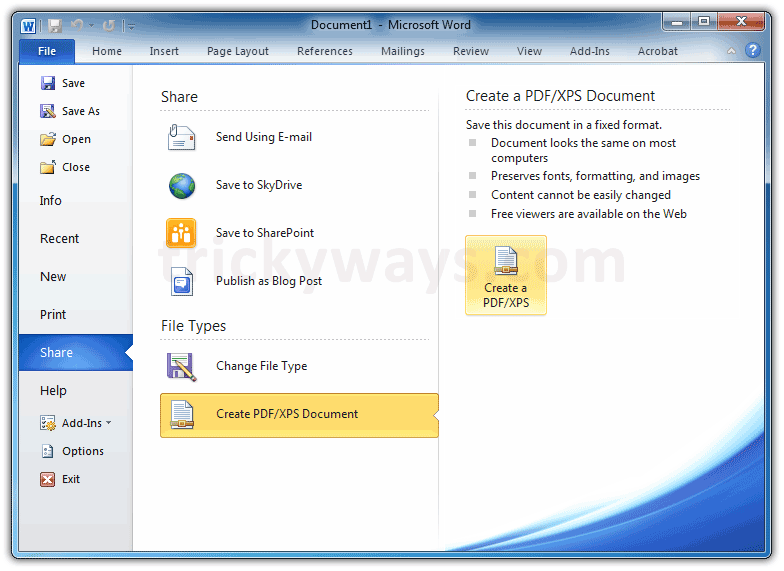
Click on File tab > Share > Create PDF / XPS Document > Create a PDF / XPS
Step-2
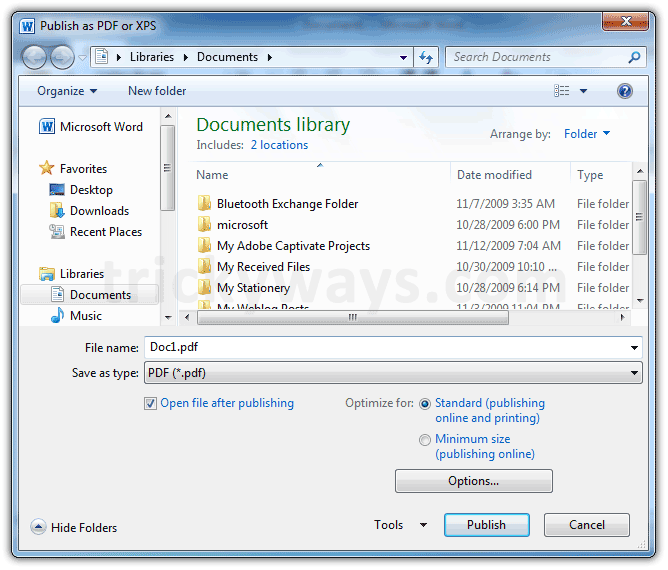
Give a PDF file name, You can optimize the PDF file size for publishing online by selecting Minimum size (publish online) option.
Tip: you can also save XPS file here by selecting XPS (*.xps) from Save as type dropdown menu.
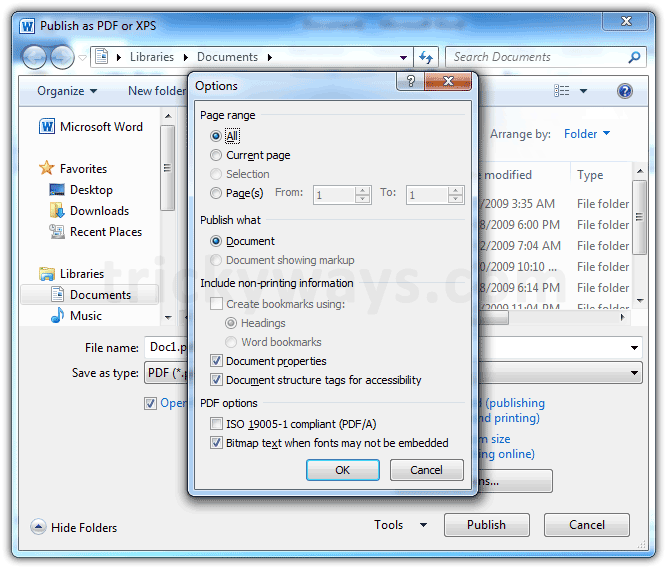
Click on Options button for more PDF options like, only publish specific word document page or range of pages, include non-printing info, or PDF iso option and text to bitmap if fonts not embedded.
When you finished with options then click on Publish button to export PDF from Word document
Thanks for sharing. However, what the issue often come to me is that converting PDF to Word files for further edition.
From my long time experience of searching and testing, AnyBizSoft PDF to Word Converter supports encrypted files and preserves text, layouts, images and hyperlinks well.
It help me a lot and hope you like it too.
Why should we use third party PDF utility to convert Word file to PDF when Office gives built-in option for PDF conversion.
Very nice word 2010 options
Thanks
very nice
thanks for this process save word 2010 docx as PDF
Is there any way to save an existing word document that I am currently editing as .docx and as .pdf every time I click save?
You can save multiple type of documents like DOCX, PDF with one click using Macro in Word
t.y i have an assignment na!!tayamat………..
Any chance there is an option to attach other pdfs and link to them as external documents or separate pages? IE when one opens the pdf, I want them to see the separate pdfs in the ‘attachments’ section but can’t figure out how to do this through word.
Thanks so much
useful information
Thanks for the great info! Very useful
Hello blogger!
Thanks to you for posting this blog. Besides the information is to convert word to pdf is help them for all kind of user. I want to mentioned that there are new website are available by utilizing you can convert pdf to word file easily.
Thanks