If you switched from Outlook Express to Outlook 2007 and want to import all emails and addresses into Outlook 2007 then Outlook 2007 gives an Import and Export wizard option to do that. You can use this guide if Outlook Express and Outlook 2007 is on same computer.
Step-1
Run Outlook 2007 and click on “File” menu and select “Import and Export” option.

Step-2
Select “Import from another program or file” option and click “Next” button.

Step-3
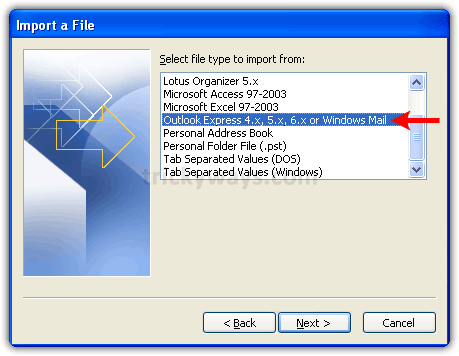
Select “Outlook Express 4.x,5.x,6.x…” option and click “Next” button.
Step-4
This will starts a Wizard to add Outlook Express account into Outlook 2007, just follow the wizard instructions and fill the emails account details.


Choose connection type you are using.
Click “Finish” button to save settings and you have setup the email account of Outlook Express in Outlook 2007, Emails importing is next step.

Step-5
Click “Yes” button to start importing email messages and addresses into Outlook 2007.

You are done!
Now you have all your Outlook Express email messages and addresses in Outlook 2007.
See also:
We did just that but some new email in outlook express disappeared in outlook (perhaps due to corruption?). We can select those missing email in outlook express to export/dragged out to desktop as individual files, but if i try to drag these files back to outlook 2007 it does not import them but rather just creates a new mail with them as attachment. how annoying!
Before importing express data into Outlook 2007, there is a need to convert DBX file into PST format. After that, User would be able to import PST file in Outlook 2007 manually. However, there is software available in market for DBX to PST conversion which is developed by trusted vendor (Stellar Phoenix).