If you switched to Samsung Galaxy Tab and want to import SIM contacts to it then in the following guide you will learn about the process to import SIM contacts to Galaxy Tab.
Import SIM Card Contacts to Samsung Galaxy Tab
Step-1
On “Home” screen, tap “Applications” and then tap “Contacts”.


Step-2
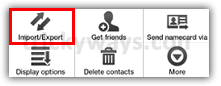
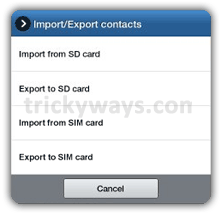
Press “Menu”  key and tap on “Import/Export” option > “Import from SIM card”
Step-3
Press “Menu” key and tap on “Copy to phone”
Step-4
Tap on “Select All” > “Done”
All of your contacts that were saved on your SIM card are imported to Samsung Galaxy Tab.
See also:
How to Change storage location on Galaxy Tab
How to Change interface Language Galaxy Tab
more Galaxy Tab or Android Tips
Thank you for this information, really useful.
Best,