If you have both Mac and PC at home or Office and I am sure you want to either access Mac files from PC or access PC files from Mac. In this guide, you will see how to share Mac files for Windows using Mac OS X Snow leopard and Windows 7. This process is simple and straightforward, but first, you need to set up your Mac to share files/folder with windows by enabling file sharing option.
This guide is created using Mac OS X Snow leopard and Windows 7. See also File sharing Mac OS X Lion and Windows 7
Step-1
Make sure both computers Mac and PC are connected to the same network Either Wireless or Cable.
Step-2
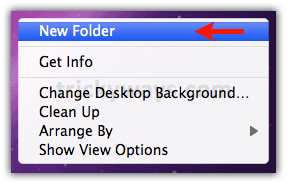
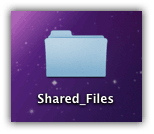
Right-click on the desktop and create a “New Folder,” put your all stuff in it that you want to share with Windows 7 (Instead of desktop you can create this folder some other place as you wish).
Step-3
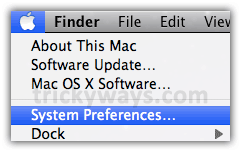
Click on “System Preferences…” option under “Apple” menu.
Step-4
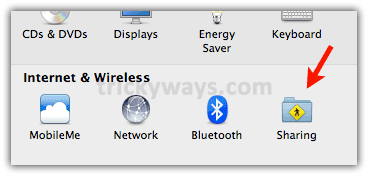
Click on “Sharing” icon under “Internet & Wireless” section.
Step-5
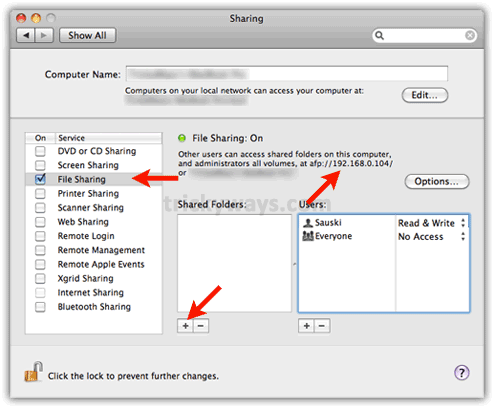
Enable file sharing on Mac:
- Note down the IP address of your Mac computer.
- Check the “File Sharing” checkbox on the left side.
- Click on “+” sign to add a shared folder that we have created in step-2.
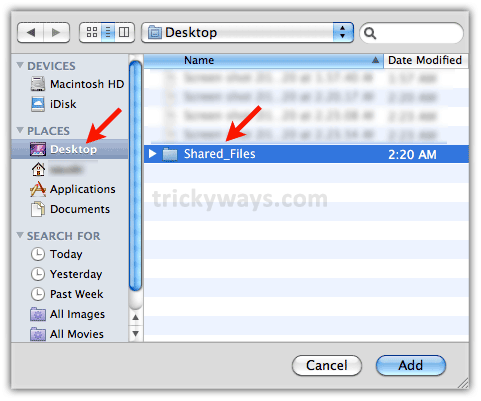
Select folder form “Desktop” and hit “Add” button.
Step-6
Add a new user:
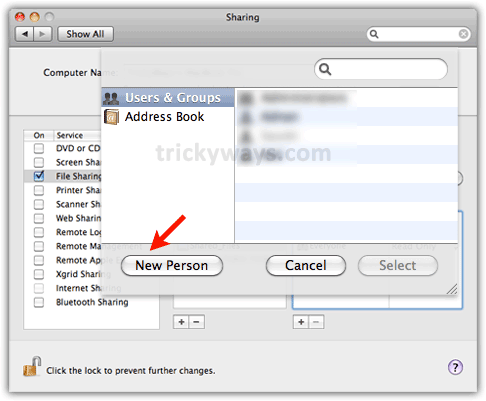
- The shared folder is added, now Hit the “+” sign to add a user as shown below. You will use this user to log in from Windows while accessing Mac.
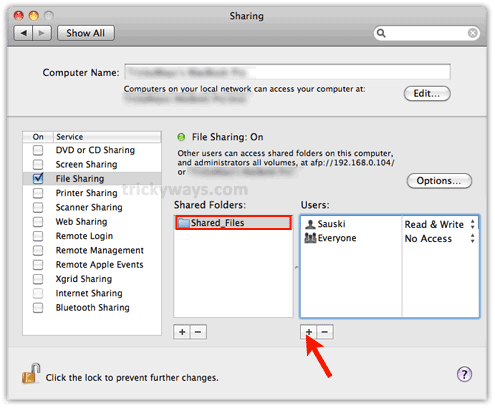
Hit the “New Person” button.
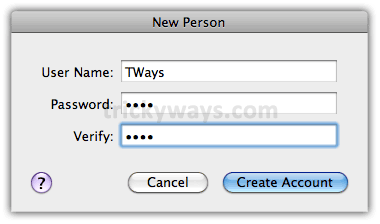
Enter User Name and Password and hit “Create Account” button.
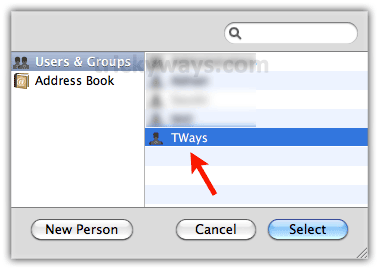
Select User Name that you have added and hit “Select” button.
Step-7
Final Step on Mac:
- You can see the Windows user is listed under “User” section (You can manage user rights by clicking on “Arrows” in front of username).
- Now do the final step on Mac, Click the “Options” button.
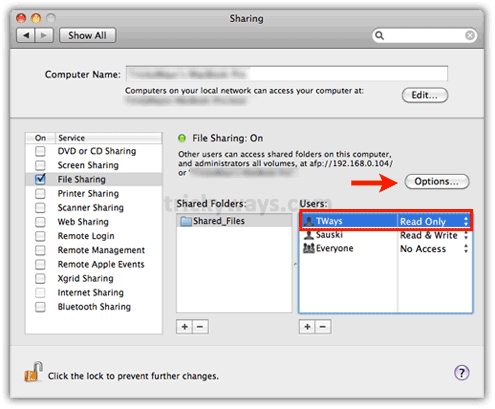
Sharing options
- Make sure the following check boxes are checked “Share files and folders using AFP” and “Share files and folders using SMB (Windows).”
- Also, check the Windows username checkbox that you have added in step-6 this will prompt to enter the password,
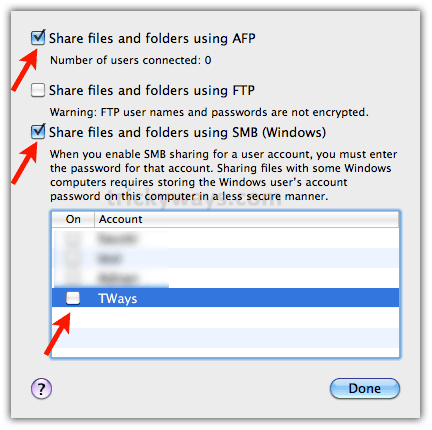
Enter the user’s password that you entered while creating a new user in step-6 and hit “OK” and then “Done” button.

Step-8
Now Windows Part:
In Windows 7 Press Windows + R keys from keyboard to open Run Window, and type the Mac computer IP address as shown below. You have noted Mac IP address in step-5.
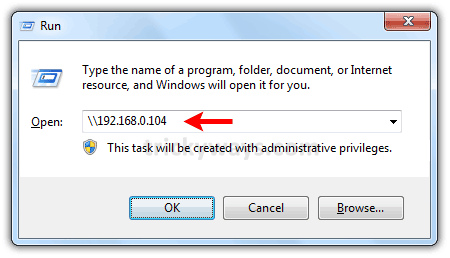
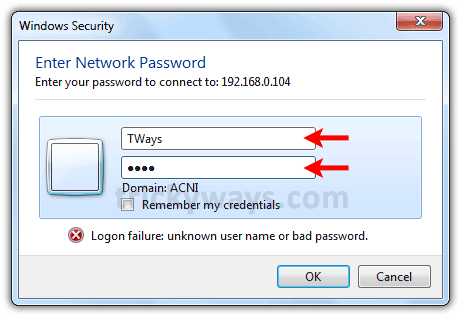
You will see a login Window, Enter the User Name and Password that we have created in Step-6.
Finally, you can see the folder in Windows 7 that you have shared on Mac.

This took a lot of time to write; leave some comments below and feel free to ask anything.
see also:
Precise and accurate set of steps to access Mac from Windows. I try it by myself works perfect.
I also accessed Mac data from Windows 7 with this provided guide
Most concise, accurate article on subject I have read. Thank you.
I have Mac OS-X 10.6.4 on an iMac and Win7 Home Premium on a HP Laptop.
Worked fine until step 8 after doing the run command. Instead of a Windows Security window, the Windows Explorer came up with the MAC directories. No chance to “Remember My Credentials”. Thus after putting my HP laptop into sleep and reactivating it, the iMac computer did not show up in the Network directory of Explorer and I had to redo step 8.
On caveat in showing Win7 on the iMac. I had to disable my Norton Smart Firewall and later change the “Trusted Status” in Norton for the network connection.
Looking forward to hearing from you.
Excellent many thanks, I have only had my Mac for 4 days and so this has been a huge help connecting to my existing windows PCs. Thanks for taking the time to educate others.
Great guide, I followed it and successfully got access to Windows 7 computer through Mac.
I just got a windows 7 laptop…want to interact with my iMac. Windows won’t accept/acknowledge mac ip address. Verified it was correct multiple times. Suggestions?
Make sure both computers are on the same Network
Hey guys, i followed everything step by step but when i reached step 8 it doesn’t work, it says cannot access IP…
we are on the same network, same subnet. both firewalls are turned off.
any thoughts? appreciate the help!
Same issue here – followed all the steps bit after entering the IP address of the Mac, the Win 7 machine seems to be doing nothing and faster a minute or so I get a “Windows cannot access \\xxx.xxx.x.xxx”
May Mac can’t see my windows machine either, even though I have network discovery on and firewalls off on both machines. Both machines are on the same home wireless network.
This was immensely helpful! We just bought new PC laptops for our small office that needed to coordinate with a Mac computer, which contains all of our central documents. Your steps were perfectly accurate and easy to follow! Our office is very grateful for this article… Mainly because it kept me from throwing the pretty new PC across the room in frustration!
I do want to throw the windows laptop accross the room!!! I have tried everything I can think of. I can see the mac in the network page of windows 7 but when I try to access it I get a login failure and am asked to login again.
Thanks, this helped a lot! I did this with 0S 10.5 and Windows 7 Home Premium.
2 things I had to do here additionally:
1. it was not enough to just add a simple person for the new connection – I had to add a “standard” account in the accounts panel (otherwise I couldn’t select this account for Samba-Sharing).
2. I had to re-login on Windows 7 – the shared folders weren’t refreshed before.
What do you mean by “I had to add a “standard” account in the accounts panel”? On Windows or Mac? I have a Windows XP desktop, Windows 7 laptop, and a iMac… They are all part of the same workgroup and connected to the same wired network… XP and iMac (Snow Leopard) see each other just fine… Win 7 can not see either of the shared folders from any of them… Everything is configured as this guide suggest… ARRRGGG!!!
I had to add the account on Mac. I successfully managed to set up a connection with Windows 7 and MacOSX 10.5, maybe this behaves different on newer OSX versions.
I have the same problem; can’t even enter my username and PW (step 8) as the windoze machine does not accept my Mac’s IP adddress. “Windows cannot access \\xxx.xxx.x.x…”
This was a great tip. My wife has a Mac & I am a Windows user. We both work together and need to share files, so this was very helpful. Thanks Again.
I have Windows 7 Pro. I made my Username & PW the same on both computer which brought the Windows Explorer menu up right after the Run Command procedure. Because It was no in my WorkGroup I simply had to map the new Shared directory within that Explorer Window. Works Perfect!
Thank you! Looked everywhere for help with this.
Very usefull!!
I have one problem though: When connecting the Win7 by writing the IP-adress of my Mac, it doesn’t ask for any Username and password, it just connects… This shouldnt be any problem, but now it doesnt really work from my Win7
Thanks so much. I was getting shafted at every step until I found this guide.
Superb guide. Thanks a lot for the time devoted to such helpful tool.
Accessing Mac from Windows, great article.
excellent!!! thanks alot!
This helped me so much and it was very detailed thank you very much for your time on this guide. For me once I completed this procedure all of my computer was available including the shared drive that I specifically set up and the entire hard drive and the external drive connected with FireWire. Fine with me 🙂
Great article, super helpful! I’m running into a similar issue as EMil, though. No prompt to enter username or password after step 8. I connect to the Mac, but I can only see printers and not the files I want to share. How do you fix this?
Best I’ve seen. Why something so intrinsic and integral to everyday computing seems overlooked is a mystery – it is assumed you’re network specialist. Most aren’t. Thank you for your work it is appreciated
I have also used your guide (PC to MAC) equally fine.
Any chance of a version connecting over wifi.
You can use the same guide for file sharing between Mac and PC over WiFi or LAN.
Cheers
An excellent guide thank you! Having spent 2 hours trying to do this I finally stumbled across your guide and it took 10 mins 🙂 The only thing that was missing was that the PC and the Mac have to be on the same workgroup seemingly??
Thank you again!
Awesome. thank you very much you saved my lots of time 🙂
Thx so much bro. It worked smoothly and perfect. thx.
Three years later it still has worth. Thanks for the help!
Thanks. I could do this from Mac to Windows but could not figure out how to do it from Windows to Mac. The catch was in enabling the SMB option in Mac. Logging in as myself from windows into Mac, got me the complete access to all my files on Mac. Now my wife can working on Mac and I can access all my files from my Windows machine!. Incidentally, I have Mountain Lion on my Mac.
best instructions on Earth for this setup. Excellent
I have some old Mac files (probably OS 9) that were saved on Zip disks. I need to retrieve them! When I try to open them from my Windows 7 laptop, I get an error message asking me I need to reformat the disk. Onbiously I don’t want to do that.
Any suggestions how to read those files?
Hi,
I did this with my hard drive, and it worked up until the point when i had to actually access it. When i click on the hard drive that is being shared, it says that windows cant access the drive?
Any suggestions?
Please make sure you have performed step-6, 5 and 7 correctly where you select the right folder and gives permission to the user. make sure permissions are in Step-7 Read & Write. If you need help through Teamviewer I can manage that.
Thanks very much for this excellent simplification of something which perplexes many amateurs. I take my hat off to you.
Fantastic – I’ve been trying for ages to connect the pc to the mac infact it has taken me over 5hours of searching and trying similar steps but to no avail. That was until I discovered your link and after 5mins my PC now talks to my mac hurrah
Excellent instructions – slightly different but I have just got a MacBook Air with OSX10.10 Yosemite and was banging my head at not being able to access it from my Windows 7 PC. All OK now – sigh of relief!
Very useful, thanks for the effort.
Wow, 2015 – 4 years later and this thread is still useful.
Have multiple Macs for years but kept forgetting Windows side connecting sequence.
Quick search and voila!! Done.
Thank you!!!
I had been trying to figure out how to access my SAMBA file shares located on my RPi server from my Windows 10 PC. Your tip on using the IP address worked a treat. Thank you so much!